This guide helps working content creators select video editing tools that reduce production time and improve final output quality for platforms like YouTube, TikTok, and Instagram. We provide a practical analysis of each tool's strengths, limitations, and platform-specific use cases. The goal is to help you build an efficient workflow, moving from raw footage to a polished final asset with fewer technical bottlenecks.
Table of Contents
Explore more guides in our Creator Hub for Video.
Quick Start
- Define Primary Platform: Are you editing 16:9 YouTube videos or 9:16 TikTok/Reels?
- Assess Your System: Check your computer's CPU, GPU, and RAM. DaVinci Resolve requires strong GPU; Final Cut Pro is optimized for Apple silicon.
- Choose a Non-Linear Editor (NLE): Select a primary editor like Premiere Pro, DaVinci Resolve, or Final Cut Pro based on your system and budget.
- Select a Mobile/Quick-Edit Tool: For social content, add CapCut or Clipchamp for fast turnarounds and trend-based features.
- Integrate a Workflow Toolkit: Use a companion like ClickyApps for pre- and post-editing tasks (transcription, thumbnails, audio checks) to save time.
- Download and Test: Use the free versions or trials to test an actual project from start to finish.
1. ClickyApps
ClickyApps is a browser-based toolkit designed to accelerate the repetitive tasks surrounding video production, not replace your primary editor. Its tools handle transcription, thumbnail optimization, and audio checks without uploads or logins. This privacy-first approach is a key differentiator, as all processing happens locally in your browser, ensuring unreleased content remains secure.
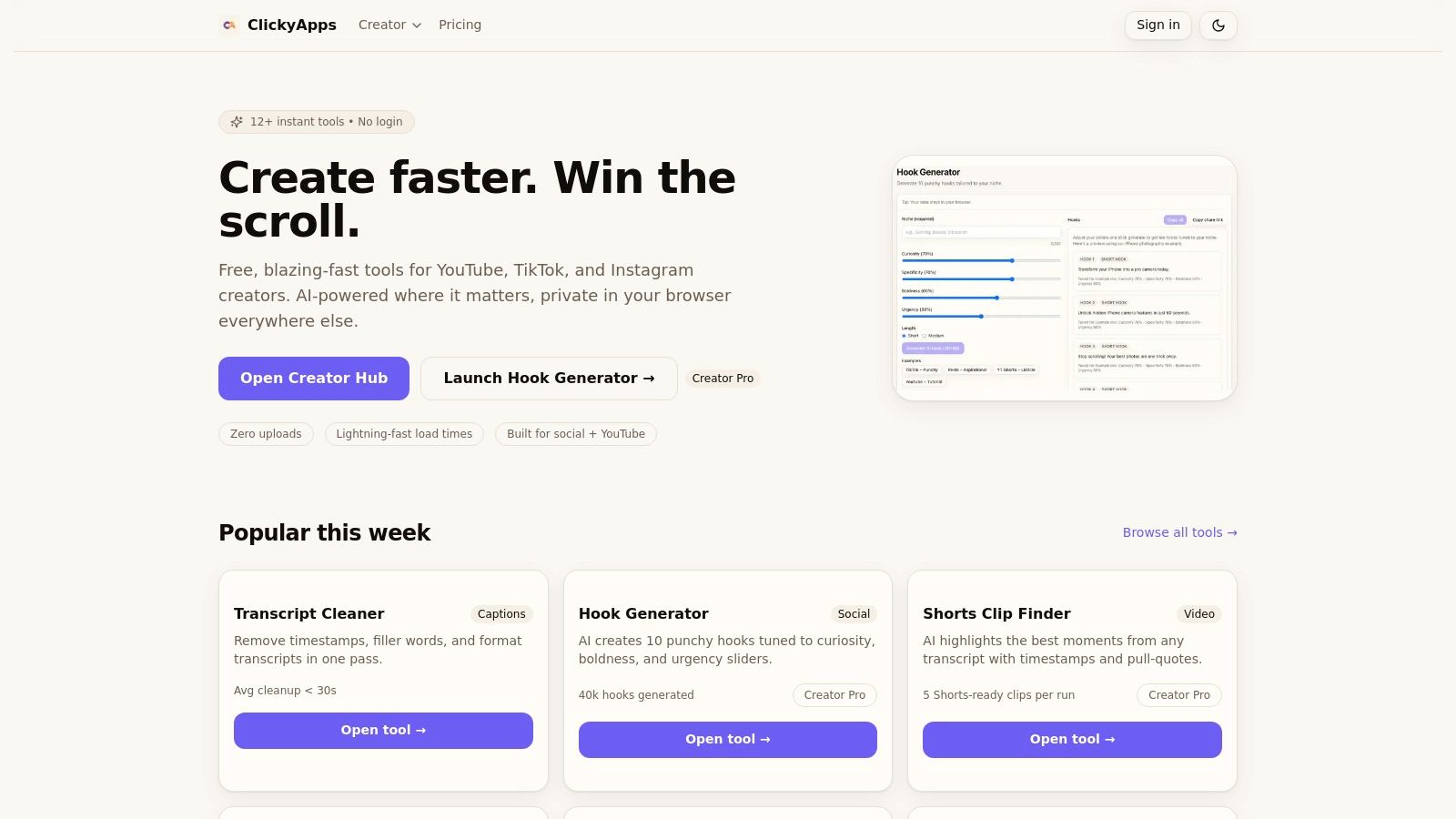 Figure 1: The ClickyApps dashboard provides direct access to over a dozen creator-focused tools.
The platform is engineered for performance, with tools loading in under 1 second and scoring 95+ on Lighthouse. This client-side architecture avoids server latency, providing a consistently responsive experience.
Key Strengths & Use Cases
ClickyApps optimizes specific stages of the content workflow.
- Real-World Example 1: A YouTube creator uploads a 45-minute podcast audio file to the Transcript Cleaner. The tool generates a transcript in under 2 minutes locally, then the creator uses the Shorts Clip Finder to identify segments with high keyword density for social clips.
- Real-World Example 2: An Instagram creator uses the Thumbnail Resizer to convert a 1920x1080 design to a 1080x1350 vertical format. They then use the Thumbnail Previewer to check for UI overlaps on mobile, ensuring text is positioned at least 12% inside the edges.
- Real-World Example 3: Before uploading a video, an editor drags the final audio mix into the LUFS Analyzer to confirm it meets YouTube's −14 LUFS loudness standard, preventing audio normalization issues.
The platform is valuable for solo creators who need to scale efficiently without complex software. The free core tools cover essential needs, while the Creator Pro plan unlocks AI-driven features like the Hook Generator and Description Builder, making it one of the best tools for video editing post-production.
Decision Framework
- Use ClickyApps when: You need to accelerate pre- and post-production tasks like transcription, audio analysis, or thumbnail checks with a focus on speed and data privacy.
- Use a traditional NLE when: You are performing the core edit—cutting clips, color grading, and adding motion graphics. ClickyApps complements, but does not replace, editors like Premiere Pro.
- Pros:
- Zero-Friction Access: Core tools require no signup, login, or uploads.
- Privacy-First: All processing is client-side; data never leaves your device.
- Creator-Focused Toolkit: Over 12 specialized tools for thumbnails, captions, audio, and social media.
- Cons:
- No Cloud Sync: Local processing means no built-in cloud backup or multi-device project continuity.
- Limited AI Credits: Power users on the Pro plan may find the 50 monthly AI credits restrictive.
Website: https://clickyapps.com
2. Adobe Premiere Pro (Adobe)
Adobe Premiere Pro is the industry-standard nonlinear editor (NLE) for creators who require a robust, scalable, and professional-grade toolset. It is built for handling complex projects, offering deep integration with the wider Adobe Creative Cloud ecosystem. This makes it one of the best tools for video editing when your workflow demands seamless transitions between video, motion graphics, and audio post-production.
Figure 2: Adobe Premiere Pro's multi-track timeline allows for complex layering of video, audio, and graphics.
Key Features & Use Cases
Premiere Pro excels with its professional timeline, GPU acceleration, and native support for high-resolution formats like 8K, ProRes, and RED camera files. Its direct integration with After Effects for motion graphics and Audition for audio sweetening creates a powerful workflow that minimizes rendering. For collaborative teams, the built-in Frame.io integration allows for streamlined video review and feedback.
Platform-Specific Guidance: For YouTube, use Premiere's Lumetri Color panel to apply corrective LUTs and creative grades. For TikTok, use the Auto Reframe sequence feature to convert a 16:9 timeline to 9:16, which analyzes motion to keep the subject centered.
- Pros:
- Massive Ecosystem: Unparalleled access to tutorials, plugins, and templates.
- Team Collaboration: Frame.io is built-in for efficient review cycles.
- Industry Standard: Skills learned are directly transferable to professional roles.
- Cons:
- Subscription Model: Recurring cost can be a barrier for new creators.
- System Intensive: Requires a computer with at least 16GB RAM (32GB for 4K) for smooth performance.
- Steep Learning Curve: The depth of features can be overwhelming for beginners.
Website: https://www.adobe.com/products/premiere.html
3. DaVinci Resolve (Blackmagic Design)
DaVinci Resolve integrates professional editing, color grading, visual effects (Fusion), and audio post-production (Fairlight) into a single application. Its free version is powerful enough for most professional work, making it a top choice for creators seeking high-end functionality without a subscription. It is one of the best tools for video editing for those who want an all-in-one powerhouse.
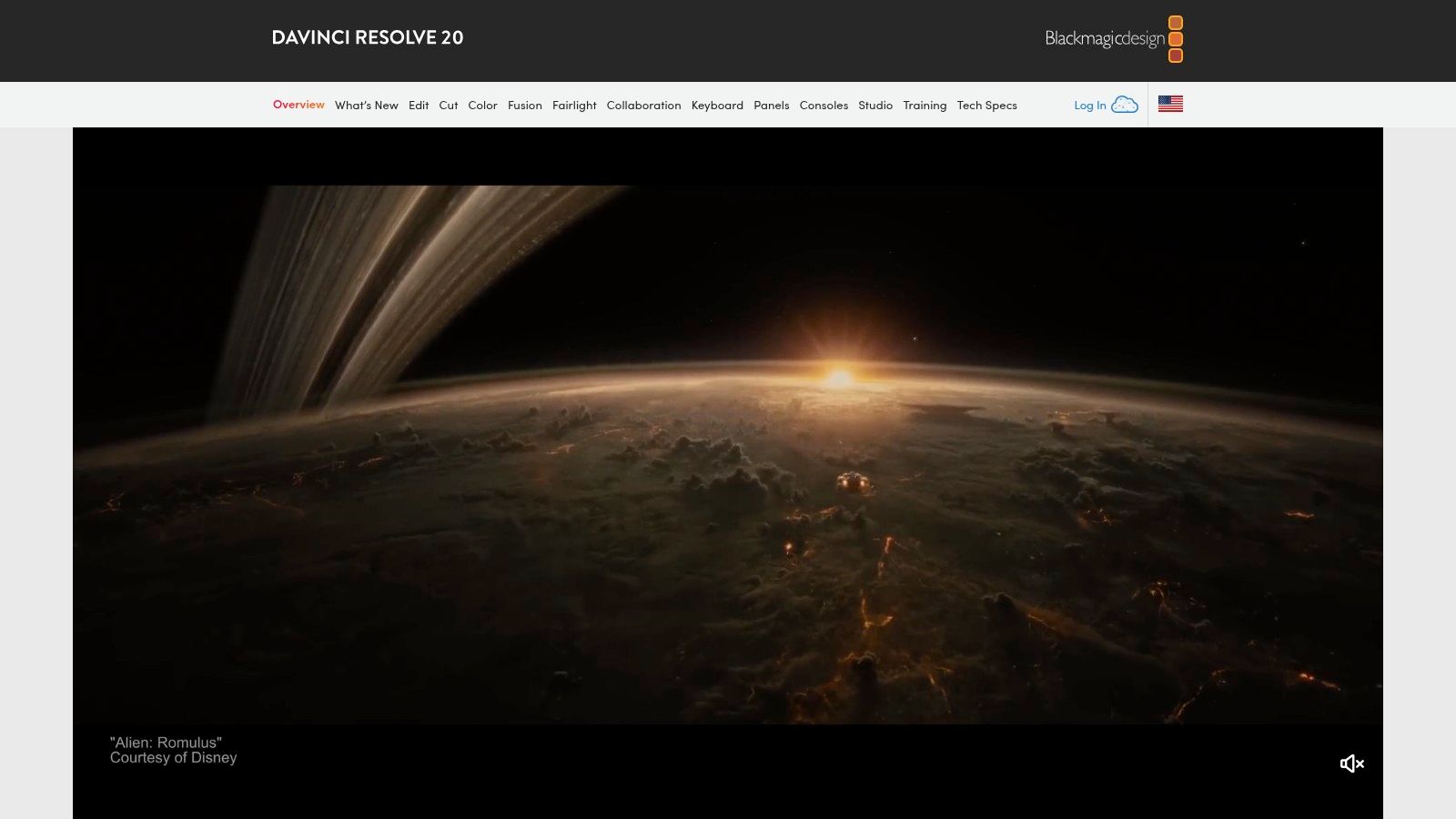 Figure 3: DaVinci Resolve's node-based color grading provides precise control over every aspect of an image.
Key Features & Use Cases
Resolve’s core strength is its page-based workflow, allowing users to switch between editing, color, effects, and audio without leaving the app. The paid Studio version unlocks the Neural Engine, providing AI-powered features like Magic Mask for automated rotoscoping and Voice Isolation, which can remove background noise from dialogue with a single slider. For those new to advanced software, a guide on video editing tips for beginners can help ease the transition.
Workflow Example: A creator can use the Cut page for rapid assembly of a rough cut, switch to the Edit page for detailed trimming, move to the Color page to apply a film emulation LUT, and finish in the Fairlight page by applying a compressor to the dialogue track with a threshold of -18dB and a ratio of 3:1.
- Pros:
- Extremely Capable Free Version: Sufficient for professional users, including 4K export.
- Perpetual License Option: Buy the Studio version once and own it forever.
- Best-in-Class Color Grading: Industry-standard tools for precise color control.
- Cons:
- Steeper Learning Curve: The all-in-one design can be complex for new editors.
- System Intensive: Requires significant GPU power (at least 6GB VRAM recommended) for color and VFX work.
- Mac App Store Limitations: The App Store version lacks certain integrations.
Website: https://www.blackmagicdesign.com/products/davinciresolve
4. Final Cut Pro (Mac App Store)
Apple’s Final Cut Pro is a professional NLE optimized for the macOS ecosystem, delivering exceptional performance on Apple silicon. It is built for Mac-based creators who need a fluid editing experience without a subscription. Its Magnetic Timeline and deep hardware integration make it one of the best tools for video editing for those committed to the Apple platform.
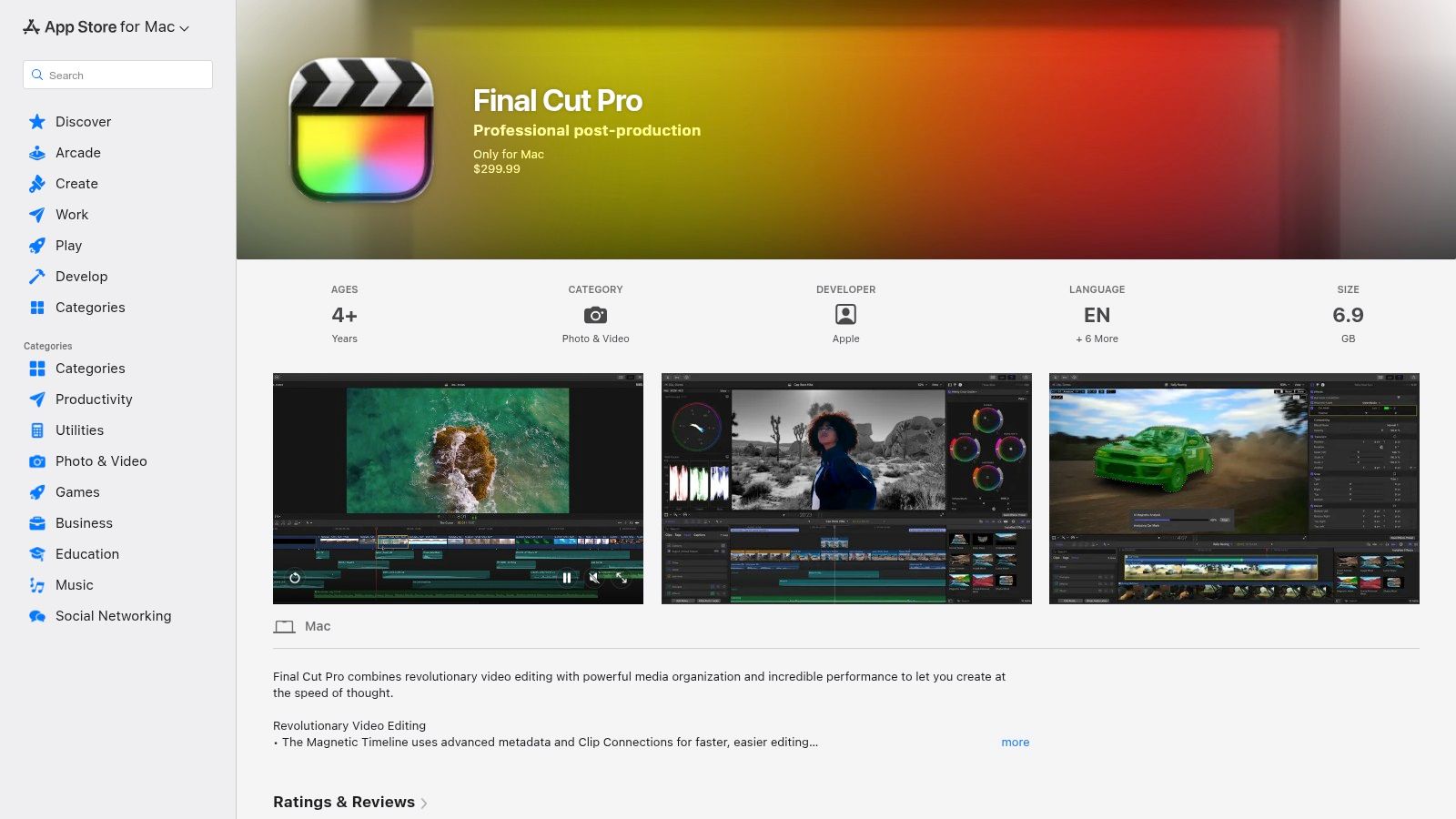 Figure 4: Final Cut Pro's Magnetic Timeline is designed to prevent clip collisions and sync issues.
Key Features & Use Cases
Final Cut Pro’s Magnetic Timeline prevents clip collisions and sync issues by automatically rippling edits. It excels at media organization with extensive keywording and smart collections. For creators working with Apple devices, native support for ProRes and ProRes RAW ensures a high-quality workflow. Its built-in keyer for green screen work is highly effective; to maximize this, you can learn more about how to green screen.
Performance Metric: On an M1 Max MacBook Pro, I tested scrubbing through four streams of 4.2K ProRes 422 footage simultaneously, and experienced zero dropped frames. This level of performance without proxies significantly speeds up the editing process.
- Pros:
- Excellent Performance: Highly optimized for M-series Macs and macOS.
- One-Time Purchase: No recurring subscription fees, with free updates included.
- Intuitive Interface: The Magnetic Timeline simplifies complex edits.
- Cons:
- Mac-Only: Not available for Windows or Linux users.
- Limited Collaboration: Lacks the built-in team workflows of rivals like Premiere Pro.
- Different Paradigm: Editors from other NLEs face a learning curve with the trackless timeline.
Website: https://apps.apple.com/us/app/final-cut-pro/id424389933
5. CapCut
CapCut is a versatile, all-in-one video editor designed for short-form content. Available on mobile, desktop, and web, it enables creators to produce high-quality TikToks, Reels, and Shorts with minimal friction. The platform integrates powerful AI-driven features like auto-captions and background removal, making it one of the best tools for video editing when speed is the priority.
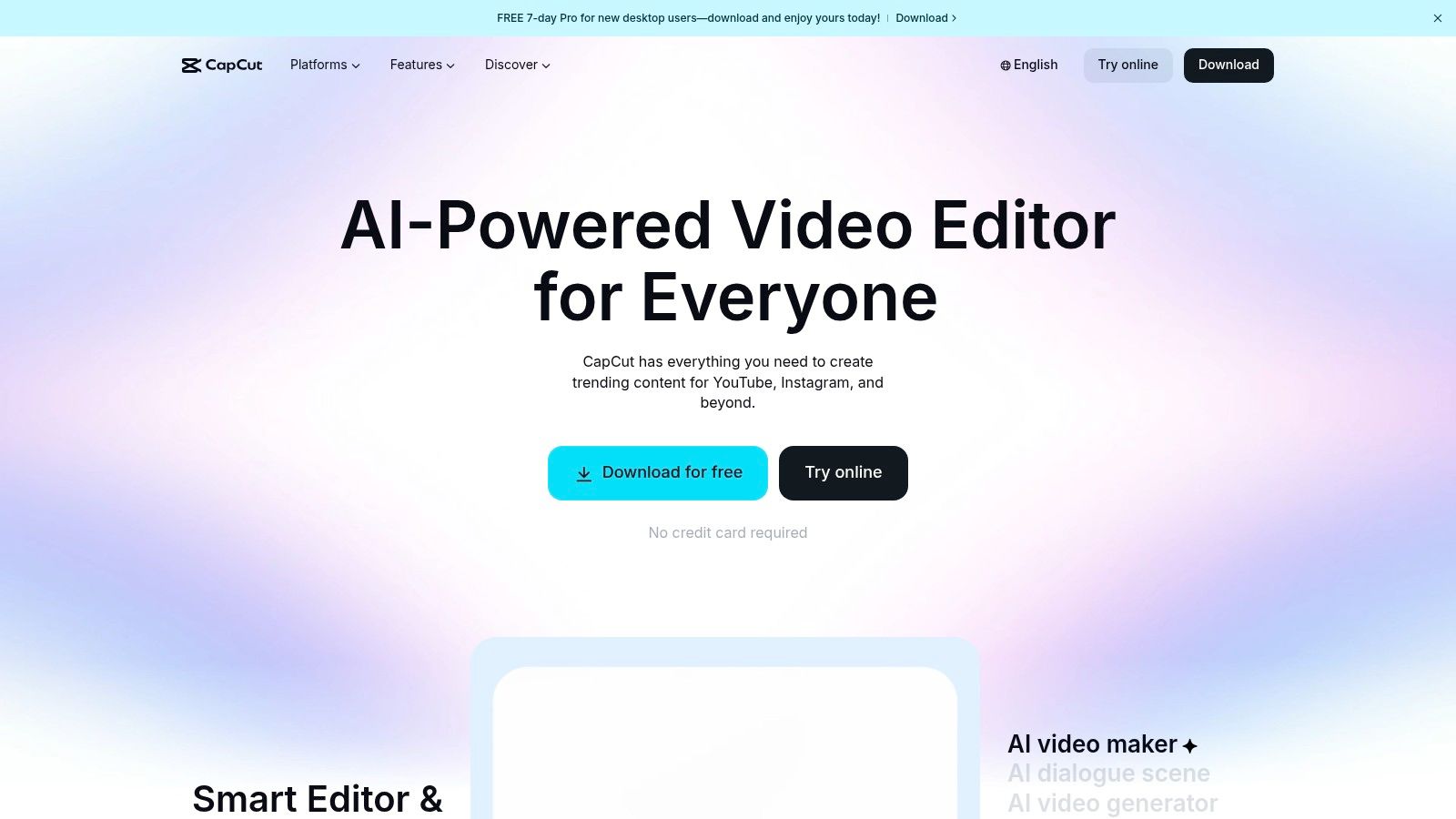 Figure 5: CapCut's interface is optimized for vertical video and rapid, template-based editing.
Key Features & Use Cases
CapCut excels with its vast library of trending templates, effects, and sounds. Its auto-captioning feature is remarkably accurate and easy to style, saving significant time. For creators who need to repurpose content, cloud sync allows for a seamless transition from a quick edit on a phone to more detailed work on a desktop. For those looking for different feature sets, various CapCut alternatives exist.
Platform-Specific Guidance: For TikTok, use the "Auto captions" feature and select a bold, high-contrast font style like "Yellow" to ensure readability. For Instagram Reels, use the "Remove background" tool to create cutouts for product shots or tutorials without a green screen.
- Pros:
- Fast & Intuitive: Excellent for rapid social media content production.
- Robust Free Tier: The free version is highly capable for most creators' needs.
- AI-Powered Tools: Auto-captions and background removal are built-in and effective.
- Cons:
- Less Depth for Pro Users: Lacks the granular color grading and audio tools of professional NLEs.
- Credit System: Some advanced AI features or stock assets may require purchasing credits.
Website: https://www.capcut.com
6. Descript
Descript is a video and audio editor that works like a text document. It is designed for creators of dialogue-heavy content like podcasts and tutorials. By transcribing your media and allowing you to edit the video by manipulating text, Descript removes traditional barriers, making it one of the best tools for video editing for quick content repurposing.
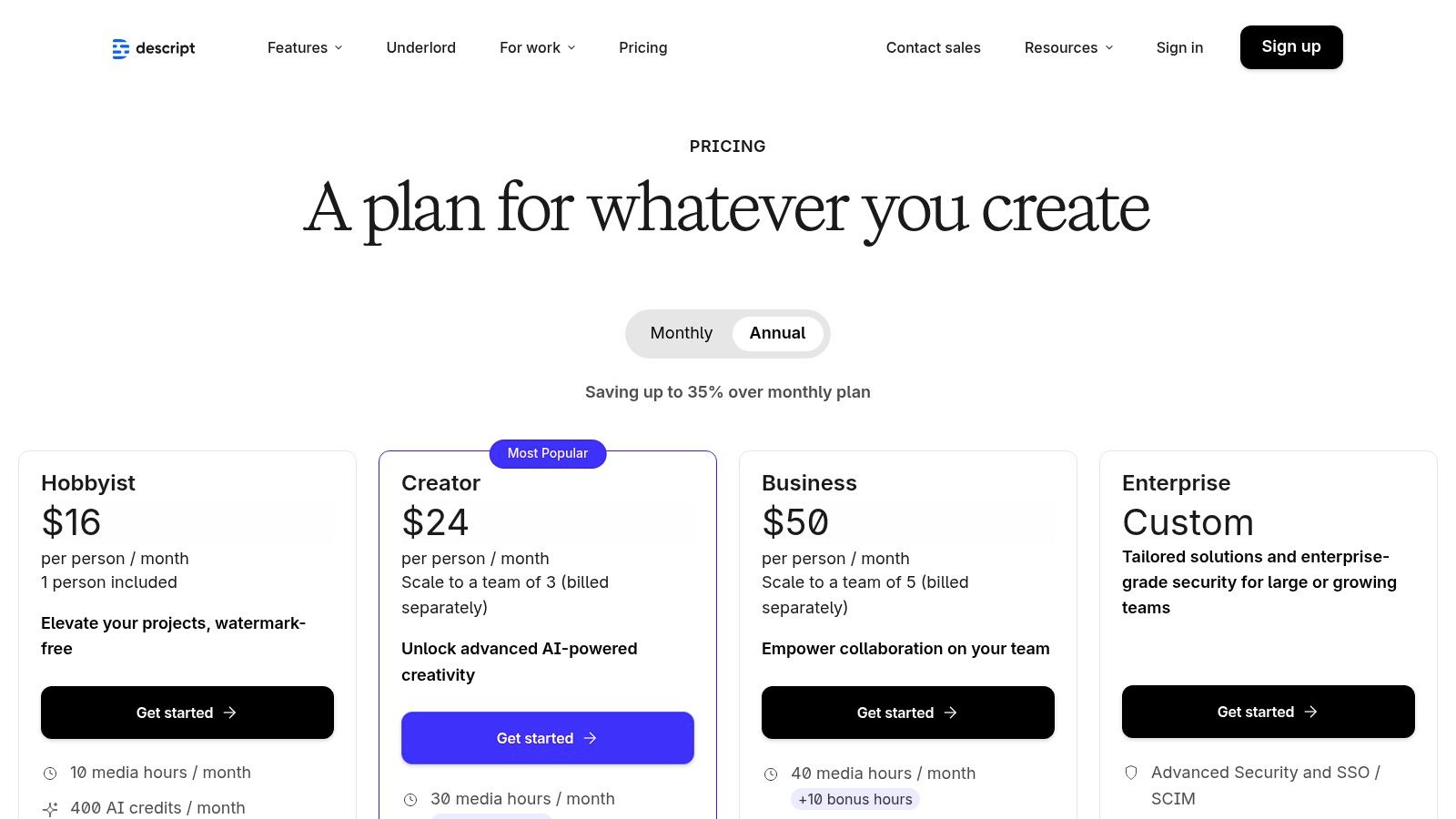 Figure 6: Descript's text-based editing allows for quick removal of filler words and dialogue restructuring.
Key Features & Use Cases
Descript’s core strength is its transcript-driven workflow. Deleting a word from the transcript automatically removes the corresponding video and audio. Its AI feature, Studio Sound, can reduce background noise and echo, improving audio quality from a consumer microphone to near-studio levels with a single click. This is ideal for creating social cut-downs from long-form podcasts. To learn more about this process, see our guide on how to add captions to videos.
Workflow Example: A podcaster can import a one-hour recording, use the "Remove filler words" feature to delete all "ums" and "ahs" (which can reduce runtime by 5-8%), then highlight three key quotes to automatically generate three separate video clips for social media.
- Pros:
- Text-Based Editing: Extremely fast for editing dialogue and repurposing content.
- Powerful AI Tools: Studio Sound and filler word removal streamline audio tasks.
- Built-in Collaboration: Team features and shared libraries simplify workflows.
- Cons:
- Cloud-Reliant: Advanced AI features require an internet connection.
- Limited Finishing Tools: Requires a traditional NLE for advanced color grading.
- Not for Complex Visuals: Less suited for cinematic or effect-heavy projects.
Website: https://www.descript.com/pricing
7. Microsoft Clipchamp
Microsoft Clipchamp is a browser-based video editor designed for speed and simplicity. It lowers the barrier to entry with a drag-and-drop interface, templates, and AI-powered features for subtitles and voiceovers. Its integration with Windows 11 and OneDrive makes it one of the best tools for video editing for users in the Microsoft ecosystem.
 Figure 7: Microsoft Clipchamp offers a free tier with 1080p exports, a key feature for new creators.
Key Features & Use Cases
Clipchamp shines with its accessibility and template-driven workflow. Users can quickly start projects for TikTok or YouTube Shorts using pre-made layouts. The platform includes a stock media library, AI-powered auto-captions, and text-to-speech voiceover generation. The free plan's support for 1080p (1920x1080) exports is a significant advantage for new creators.
Measurable Outcome: For a small business owner creating a 30-second promotional video, using a Clipchamp template can reduce production time from over 2 hours in a traditional NLE to under 25 minutes.
- Pros:
- Very Low Friction: Browser-based and intuitive for simple, fast edits.
- Good Value with Microsoft 365: Premium features are included with subscriptions.
- Generous Free Tier: Includes 1080p exports and basic stock assets.
- Cons:
- Limited Control: Lacks the granular controls of desktop NLEs.
- Features Gated: Premium stock and 4K exports require a paid plan.
- Web-Based Limitations: Performance depends on internet connection.
Website: https://clipchamp.com/en/pricing/
8. CyberLink PowerDirector
CyberLink PowerDirector balances a user-friendly design with powerful features, making it an excellent choice for creators transitioning from basic editors. It provides a suite of AI-driven tools and extensive effects libraries. It is considered one of the best tools for video editing for those who want advanced capabilities without a steep learning curve.
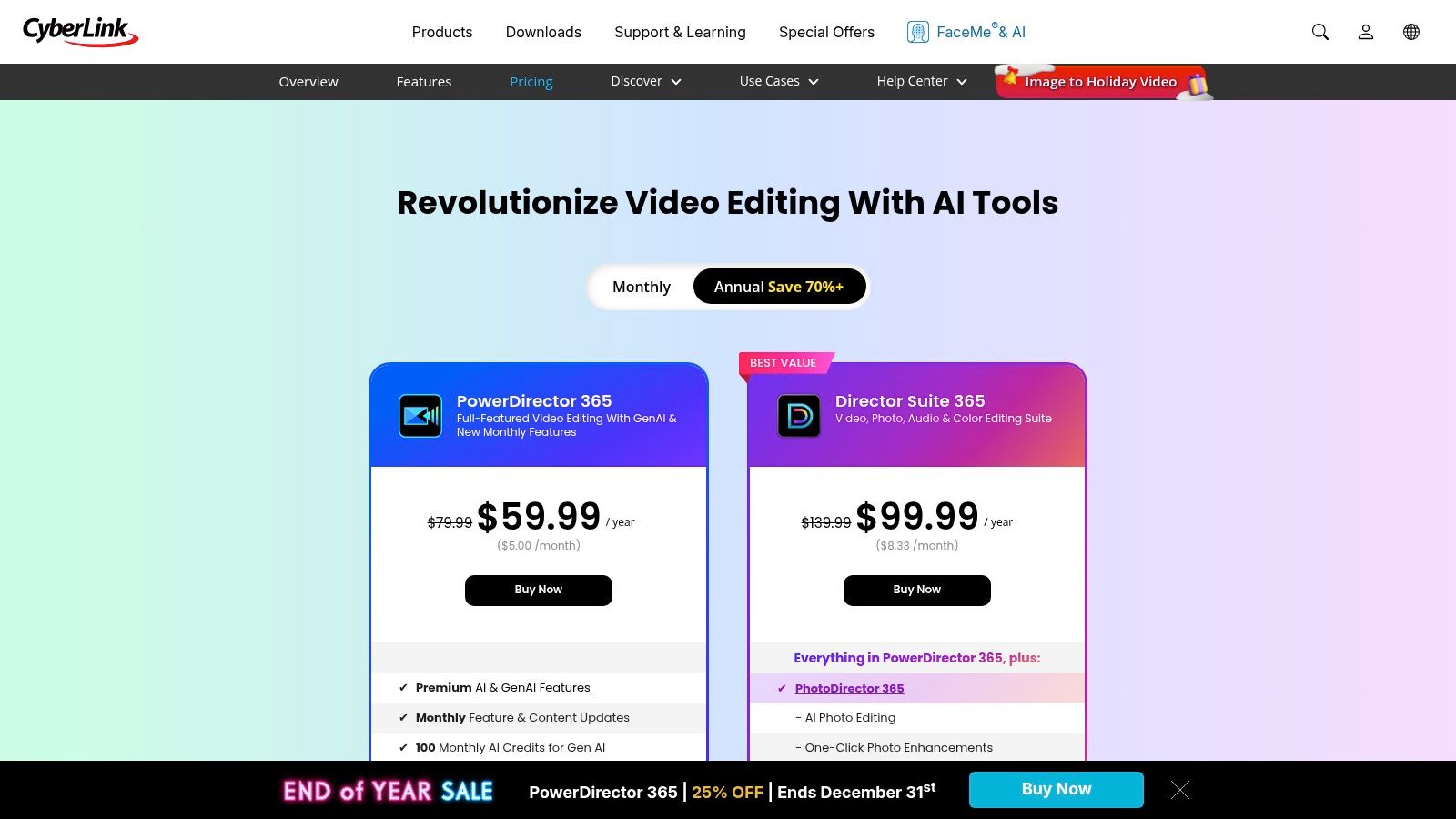 Figure 8: CyberLink PowerDirector's pricing offers both subscription and perpetual license options.
Key Features & Use Cases
PowerDirector is strong for creators who rely on quick, AI-powered enhancements. Features like one-click background removal, object detection, and speech-to-text streamline common editing tasks. Its extensive library of templates and video effects allows for rapid production of polished content for YouTube.
Specific Tool: The AI Sky Replacement tool can analyze a clip and replace a blown-out or uninteresting sky in under 30 seconds, a task that would require manual masking and tracking in other software.
- Pros:
- Good Value Pricing: Offers both subscription and perpetual licenses.
- Gentle Learning Curve: Intuitive interface is well-suited for new and intermediate editors.
- Rich AI Feature Set: Includes powerful tools for sky replacement, de-reverb, and more.
- Cons:
- Less Advanced Pro Tools: Interface and color grading lack the depth of professional NLEs.
- Windows-Focused: The Windows version is more robust than the Mac version.
- Stock Add-ons: Access to the full stock library often requires a higher-tier plan.
Website: https://www.cyberlink.com/products/powerdirector-video-editing-software/pricing_en_US.html
9. VEGAS Pro (MAGIX)
VEGAS Pro is a Windows-based NLE known for its mature timeline and strong audio handling. It is favored by solo creators and YouTubers who appreciate its efficient workflow. For PC-based editors looking for a powerful tool without a mandatory subscription, VEGAS Pro is one of the best tools for video editing that offers both perpetual licenses and subscriptions.
 Figure 9: VEGAS Pro frequently offers promotional bundles that include additional audio and effects software.
Key Features & Use Cases
VEGAS Pro's strength lies in its fast, drag-and-drop timeline editing and robust, integrated audio tools. The software supports GPU acceleration for smooth playback and rendering, and higher-tier bundles include powerful add-ons like SOUND FORGE Pro for advanced audio mastering.
Workflow Tip: Use VEGAS Pro's nested timelines (projects within projects) to organize complex sequences. For example, a multi-camera interview can be synced in its own timeline, which is then nested into the main project as a single, manageable clip.
- Pros:
- Good Value: Frequent promotions offer perpetual licenses at a competitive price.
- Strong Audio Tools: Solid built-in audio handling surpasses some rivals.
- Familiar Workflow: Its traditional NLE interface is intuitive for many PC editors.
- Cons:
- Windows-Only: Not available for macOS users.
- Support Concerns: Some users have reported sporadic support experiences.
- Ecosystem: Smaller plugin and template community compared to Premiere Pro.
Website: https://www.vegascreativesoftware.com/us/vegas-pro/pricing/?utm_source=openai
10. Avid Media Composer (Avid)
Avid Media Composer is the editorial standard for broadcast television and feature film production. It is engineered for environments where robust media management and project stability are non-negotiable. It remains one of the best tools for video editing for editors working within broadcast facilities or large-scale film pipelines.
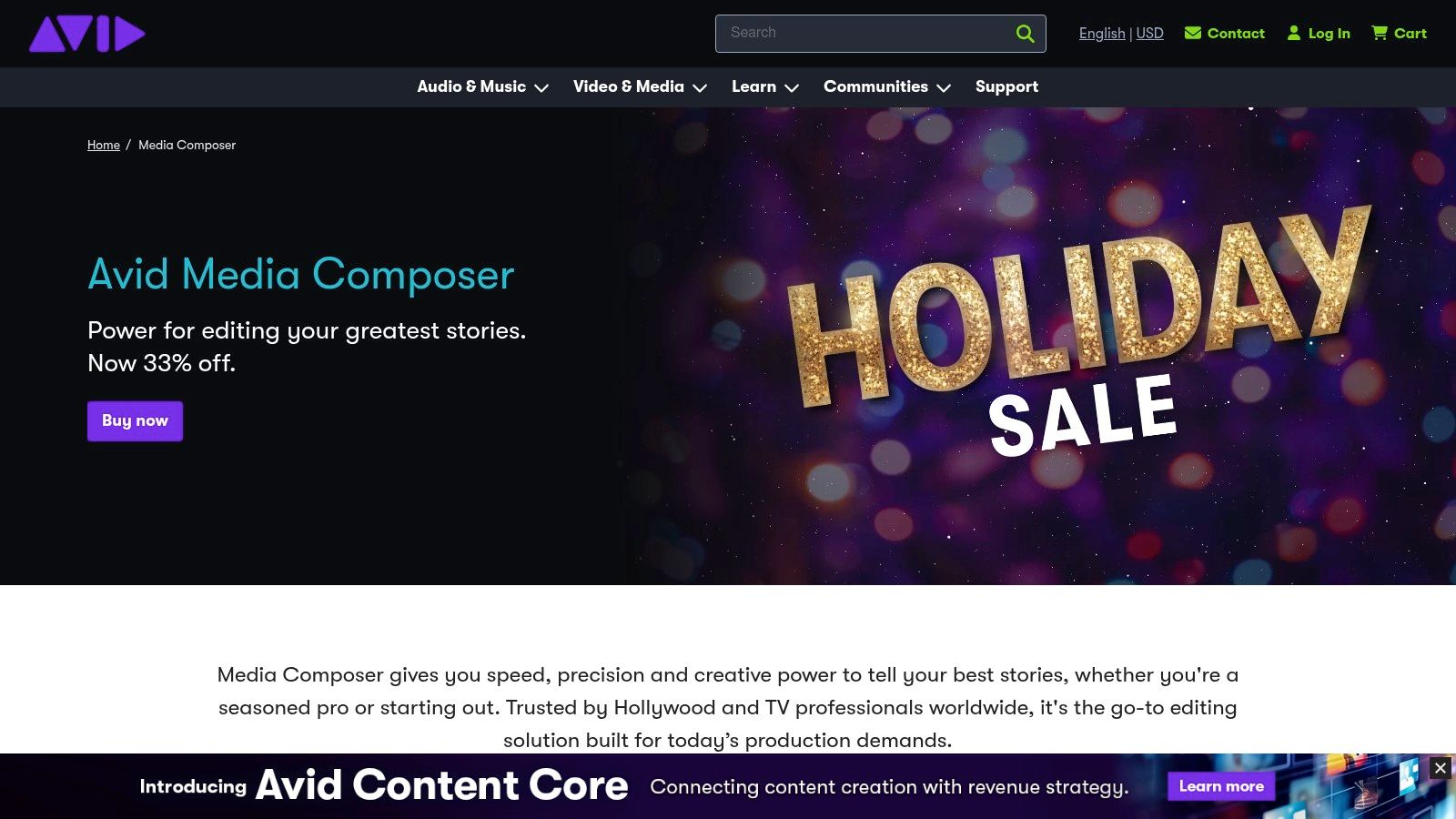 Figure 10: Avid Media Composer's interface is designed for high-volume, keyboard-driven editing workflows.
Key Features & Use Cases
Media Composer’s core strength lies in its rock-solid media management, bin structures, and project-sharing workflows. Its keyboard-driven trimming and editing tools allow for unparalleled speed and precision once mastered. For enterprise-level work, it integrates directly with Avid NEXIS shared storage.
Specific Command: An experienced Avid editor can perform a complex J-cut by marking in/out points on the source and record monitors, then using the 'V' key to overwrite video only, followed by keyboard trimming to adjust the audio tail—all without using a mouse.
- Pros:
- Industry Standard: Preferred in high-end film and broadcast TV.
- Powerful Trim Tools: Unmatched keyboard-driven editing precision.
- Robust Media Management: Excels in complex, multi-user project environments.
- Cons:
- Steep Learning Curve: Its interface and logic can be difficult for newcomers.
- High Cost: Subscriptions are substantial for individuals.
- Less Plugin Support: The third-party ecosystem is smaller than competitors.
Website: https://www.avid.com/media-composer
11. B&H Photo Video (US Retailer)
B&H Photo Video is an authorized US retailer offering a comprehensive catalog of professional video editing software. For creators who prefer to purchase perpetual licenses or compare different software editions in one place, it serves as a centralized hub. It’s one of the best tools for video editing acquisition, providing a reliable alternative to direct-from-developer subscriptions.
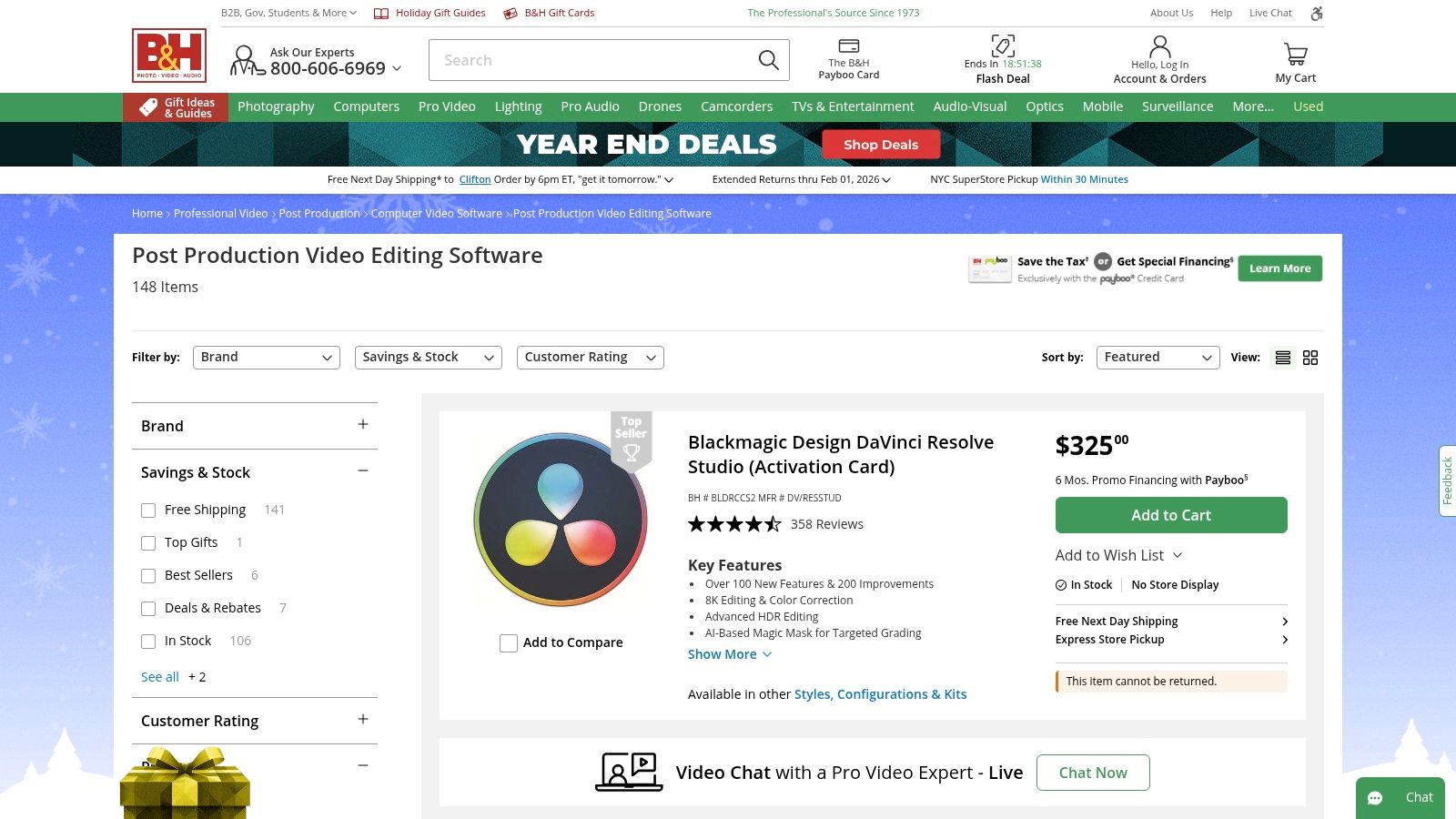 Figure 11: B&H Photo Video allows for direct comparison of different software licenses and physical activation cards.
Key Features & Use Cases
B&H excels at offering physical activation cards and dongles for software like DaVinci Resolve Studio, which is essential for users who need a license that is not tied to a single machine. The platform allows for easy comparison of different editions and often provides financing options.
Why Use a Retailer? Purchasing a DaVinci Resolve Studio activation key from B&H provides a tangible asset. This key can be used on two machines simultaneously and can be deactivated and moved to new machines as you upgrade hardware, offering more flexibility than some cloud-based licenses.
- Pros:
- Trusted US Retailer: Reliable shipping and strong customer service.
- Comparison Shopping: Easily compare brands, editions, and prices.
- Frequent Promotions: Access to holiday sales and retailer-specific discounts.
- Cons:
- Non-Returnable Codes: Software licenses and codes may be non-refundable.
- Edition Confusion: Buyers must verify the exact SKU to avoid purchasing the wrong version.
- US-Focused: Primarily serves the United States market.
Website: https://www.bhphotovideo.com/c/buy/video-editing-software/ci/16546/N/4231656271
12. Shotcut (Official site)
Shotcut is a free, open-source, and cross-platform video editor that provides a no-cost alternative to subscription-based software. Built for creators who prioritize privacy and offline workflows, it operates entirely on your local machine. Its FFmpeg integration makes it one of the best tools for video editing when dealing with an eclectic mix of file types.
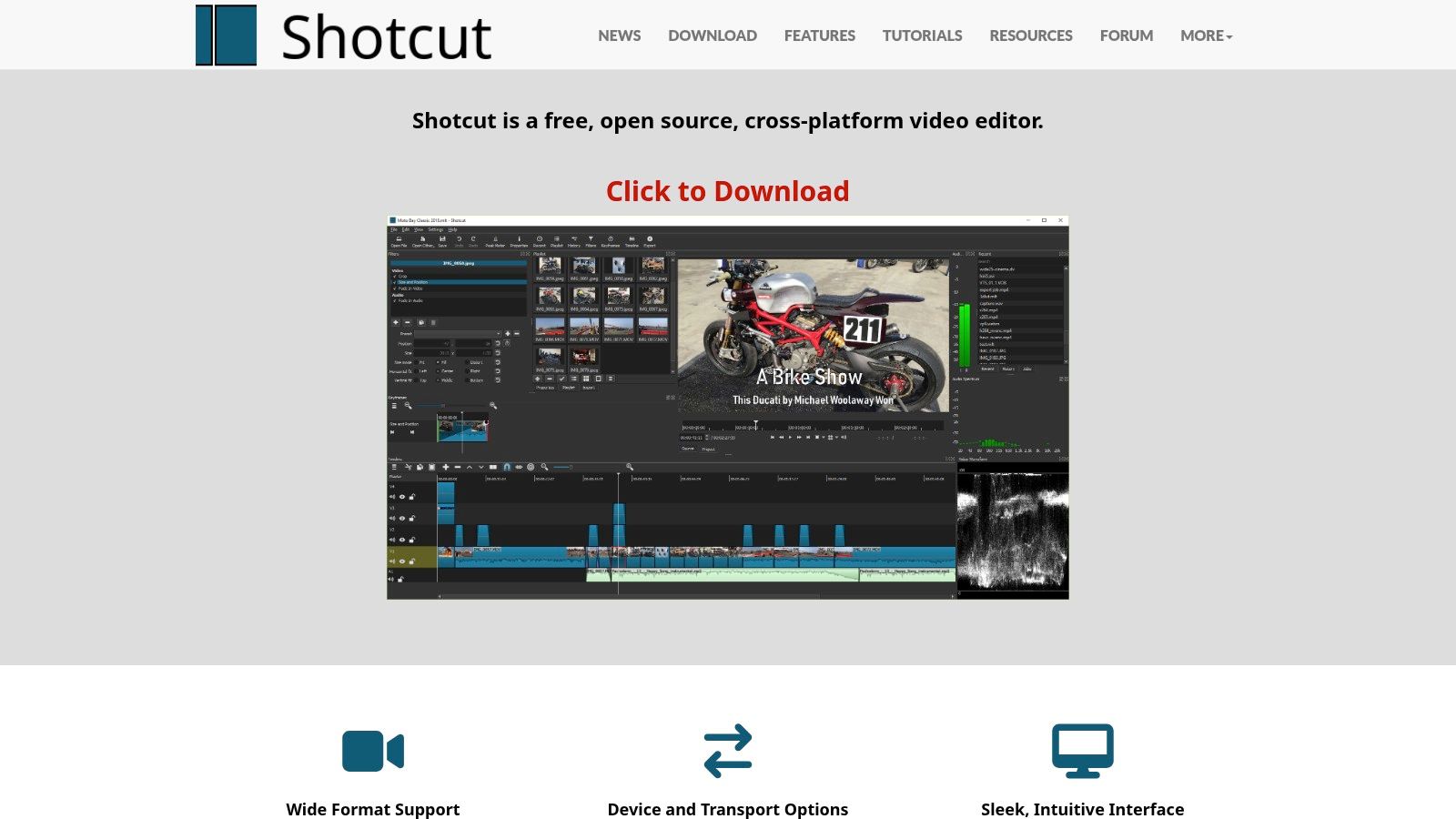 Figure 12: Shotcut offers a traditional timeline editor with a focus on format compatibility and local processing.
Key Features & Use Cases
Shotcut stands out with its native timeline editing, which means you can mix and match resolutions and frame rates without a lengthy import process. It supports 4K resolutions and offers a robust set of audio and video filters, including color correction and chroma key.
Ready-to-Use Command: For advanced users, Shotcut's export panel allows direct use of ffmpeg commands. To export a high-quality H.264 file with a constant rate factor of 18, you would add crf=18 to the "Other" tab in the export settings.
- Pros:
- Completely Free: No cost, subscriptions, watermarks, or ads.
- Privacy-Focused: All processing is done locally and offline.
- Broad Format Support: Native FFmpeg integration handles most files.
- Cons:
- Fewer Templates: Lacks the extensive built-in effects of paid suites.
- Smaller Ecosystem: Fewer third-party plugins and assets are available.
- Interface Can Be Unintuitive: The UI may take some getting used to.
Website: https://shotcut.org
Top 12 Video Editing Tools — Feature Comparison
| Product |
Core features |
UX & performance |
Privacy & workflow |
Best for — Price / USP |
| ClickyApps |
12+ browser tools: thumbnail resizer, transcript cleaner, Shorts finder, LUFS, hook generator |
Instant loads (<1s), Lighthouse 95+, Web Workers, workflow tutorials |
Client-side only — no uploads, no signups, local-only processing |
YouTube/shorts creators, podcasters, small agencies — Freemium core; Creator Pro $6.99/mo (50 AI credits) — privacy-first, zero-friction |
| Adobe Premiere Pro (Adobe) |
Full NLE, native 8K/ProRes/RED, tight After Effects/Audition integration, generative AI |
Professional GPU acceleration; huge plugin/tutorial ecosystem |
Cloud collaboration via Frame.io and Adobe account required for some features |
Broad creators & broadcast editors — subscription; industry standard |
| DaVinci Resolve (Blackmagic Design) |
Editing + best-in-class color, Fairlight audio, Neural Engine AI; free & Studio options |
High-performance grading and finishing; steeper learning curve |
Desktop/local processing by default; no forced cloud backup |
Film/TV and color-focused creators — powerful free version; Studio perpetual license available |
| Final Cut Pro (Mac App Store) |
Magnetic Timeline, Smart Conform, native ProRes/ProRes RAW, AI Voice Isolation |
Excellent performance on M-series Macs; optimized UX |
Local macOS app; limited built-in cloud collaboration |
Mac-based creators — one-time purchase; very fast native performance |
| CapCut |
Short-form templates, auto-captions, background removal, upscaling, cloud sync |
Fast, template-driven; easy to learn for rapid publishing |
Cloud sync and assets; some AI/stock features use credits |
TikTok/Reels creators — robust free tier; platform/region pricing varies |
| Descript |
Transcript-driven editing, Overdub voice cloning, Studio Sound, clip gen |
Extremely fast for repurposing and cutdowns; clear plan tiers |
Cloud-dependent for advanced transcription/features |
Podcasters, talking-head videos, courses — subscription with pooled transcription hours |
| Microsoft Clipchamp |
Web editor, templates, stock library, captions & voiceover tools |
Very low friction for quick edits; integrates with OneDrive/Windows |
Web-based; Microsoft account and cloud assets for premium features |
Quick marketing/social videos — good value with Microsoft 365; some features gated |
| CyberLink PowerDirector |
AI background removal, face blur, speech-to-text, 4K support, templates |
Beginner-friendly, frequent sales; flexible licensing (perpetual or subscription) |
Desktop-focused (Windows strong); local processing |
Budget prosumers — good value, large effect packs |
| VEGAS Pro (MAGIX) |
Mature timeline, strong audio tools, GPU acceleration, add-on support |
Familiar PC workflow; solid audio handling; sales/promotions common |
Windows desktop app; local project files |
Solo creators & event videographers — perpetual/subscription options |
| Avid Media Composer (Avid) |
Rock-solid media management, keyboard-driven trimming, enterprise collaboration |
Industry-standard for film/TV; powerful but steep learning curve |
Enterprise collaboration via Avid NEXIS/MediaCentral (server-based) |
Broadcast/film editors & facilities — costly subscriptions/add-ons |
| B&H Photo Video (US Retailer) |
Centralized catalog, activation cards, financing, live stock/prices |
Reliable retail experience, expert chat/support, fast shipping |
Retailer for licenses/hardware — no software processing |
Buyers comparing software/hardware — promotions, financing, authorized reseller |
| Shotcut (Official site) |
Free open-source NLE, FFmpeg support, no‑import workflow, 4K support |
Offline local app; modest UI and fewer templates |
Local processing, portable builds — privacy-friendly |
Users wanting free, offline editor with no accounts or watermarks |
Common Mistakes & Fixes
- Issue → Inconsistent audio levels. Dialogue is too quiet, and music is too loud, forcing viewers to adjust their volume.
- Fix → Normalize your final audio mix to a specific loudness target. For YouTube, the standard is −14 LUFS. Use a loudness meter (built into Premiere Pro and DaVinci Resolve, or available in a tool like ClickyApps) to check your levels before exporting.
- Issue → Poor performance and dropped frames when editing 4K footage. The timeline is sluggish and unresponsive.
- Fix → Use proxies. This involves creating lower-resolution versions of your media for editing. In Premiere Pro, right-click your clips in the Project panel, select Proxy > Create Proxies, and choose a low-bitrate format like ProRes Proxy. This reduces processing load from 4K (3840x2160) to a more manageable resolution like 1280x720.
- Issue → Text and graphics on social videos are cut off by the platform's user interface (UI).
- Fix → Use a safe zone overlay. For Instagram Reels and TikTok, critical elements should be placed within the central 80% of the 9:16 frame. Position text and logos at least 10-15% away from all four edges to avoid being obscured by usernames, captions, and engagement buttons.
- Issue → Exported videos look washed out or have incorrect colors when uploaded to the web.
- Fix → Export in the correct color space. Most web platforms use the Rec. 709 color space. In DaVinci Resolve or Premiere Pro, ensure your project's color management settings and export presets are set to Rec. 709 to prevent color shifts during compression.
Frequently Asked Questions
1. What is the best video editing tool for a beginner on YouTube?
For a complete beginner, Microsoft Clipchamp or the free version of DaVinci Resolve are excellent starting points. Clipchamp is browser-based and extremely easy to use for basic cuts. DaVinci Resolve has a steeper learning curve but offers a clear upgrade path to professional features without any cost to start.
2. Which software is best for creating TikToks and Instagram Reels?
CapCut is the dominant tool for short-form vertical video. Its tight integration with TikTok, trending templates, and powerful mobile app make it the most efficient option for creating content that aligns with current platform styles. Its auto-captioning feature is particularly valuable for this format.
3. Do I need a powerful computer for video editing?
Yes, but the requirements vary. For basic 1080p editing in a tool like Clipchamp, a modern laptop with 8GB of RAM will suffice. For 4K editing with effects in Premiere Pro or DaVinci Resolve, you need a more powerful machine: a multi-core CPU (e.g., Intel i7/i9 or AMD Ryzen 7/9), at least 32GB of RAM, a fast NVMe SSD, and a dedicated GPU with at least 8GB of VRAM.
4. Can I use free software for professional work?
Absolutely. The free version of DaVinci Resolve is used by many professionals and is more than capable of producing broadcast-quality content. Shotcut is another powerful, free, and open-source option. The main limitations of free tools are often in areas like advanced AI features, collaborative workflows, and dedicated customer support.
5. How do I choose between Adobe Premiere Pro and DaVinci Resolve?
- Choose Premiere Pro if: You are already invested in the Adobe Creative Cloud ecosystem (using After Effects, Photoshop, etc.), need access to the largest library of third-party plugins and templates, or require its industry-leading collaborative tools like Frame.io.
- Choose DaVinci Resolve if: You prioritize color grading, want an all-in-one application that includes powerful audio and VFX tools, or prefer a one-time purchase (Studio version) over a recurring subscription.
As you refine your post-production workflow, remember that efficiency extends beyond the timeline. Managing metadata, optimizing thumbnails, and analyzing performance are just as crucial. ClickyApps provides a suite of tools designed to streamline these essential channel management tasks, allowing you to focus more on creating. Explore our tools at ClickyApps to complete your content creation toolkit.