
Adding captions increases viewer retention for the 85% of social media users who watch videos on mute and makes your content accessible to 430 million people with hearing impairments. This guide provides a direct, technical workflow for creators on YouTube, TikTok, and Instagram to produce accurate, platform-optimized captions. Following these steps directly impacts watch time, engagement, and discoverability.
Table of Contents
Explore our full library of guides in the Creator Captions Hub.
Quick Start Guide
- Generate Transcript: Use a service like YouTube's auto-caption feature or a dedicated tool to create an initial transcript and SRT file. This saves approximately 95% of manual transcription time.
- Clean the Text: Open the transcript and remove filler words ("um," "uh," "you know") and correct any transcription errors in spelling or grammar.
- Format for Platform:
- YouTube: Use the cleaned text to create a final .SRT file for closed captions.
- TikTok/Reels: "Burn in" the cleaned text as open captions directly onto the video using your editor.
- Refine Timing & Style: In your editor, adjust SRT timecodes to sync perfectly with audio. For open captions, ensure text is within the central 80% "safe zone" with a contrast ratio of at least 4.5:1 against the background.
- Upload: Upload the SRT file to YouTube or export the video with burned-in captions for TikTok and Instagram.
Choosing Your Captioning Workflow
Selecting a captioning workflow involves a trade-off between accuracy, speed, and time investment. The choice directly impacts post-production efficiency. The three primary methods are manual, automated, and a hybrid of the two.
Manual Captioning
Manual captioning requires transcribing every word and setting timecodes by hand. This method can achieve up to 100% accuracy, making it suitable for content with dense technical jargon or critical brand messaging where errors are unacceptable.
The significant trade-off is time. A professional requires 4-6 hours to caption one hour of video. For a creator, a 10-minute YouTube video can consume a full hour of focused work.
When to use manual captioning:
- Short, high-value videos: Flagship product demos or portfolio pieces where every word must be perfect.
- Highly technical content: Videos with specialized terminology that automated systems are likely to misinterpret.
- Zero-budget projects: When time is more available than money.
Automated Captioning
Automated captioning uses speech-to-text algorithms to generate a transcript and timecodes in seconds, reducing initial transcription time by over 95%. A 10-minute video is typically transcribed in under 30 seconds.
Modern models achieve accuracy rates over 98% for clear audio, reducing total captioning time by 80-95% compared to manual methods. In 2023, AI-powered solutions were used to caption over 2 billion videos. For data on this trend, see platforms like Opus.pro.
When to use automated captioning:
- High-volume creators: Daily or weekly content production for TikTok or YouTube Shorts.
- Videos with clear dialogue: Content with clean audio and standard vocabulary yields the most accurate results.
- Speed-focused workflows: When the primary goal is minimizing post-production bottlenecks.
The Hybrid Workflow
The hybrid workflow combines automated speed with manual precision. It is the most practical method for the majority of professional content creators.
You start with an AI-generated transcript and SRT file, then perform a quick manual review to correct errors, adjust timing, and refine formatting. This process reduces the time to caption a 10-minute video from one hour (manual) to just 5-10 minutes.
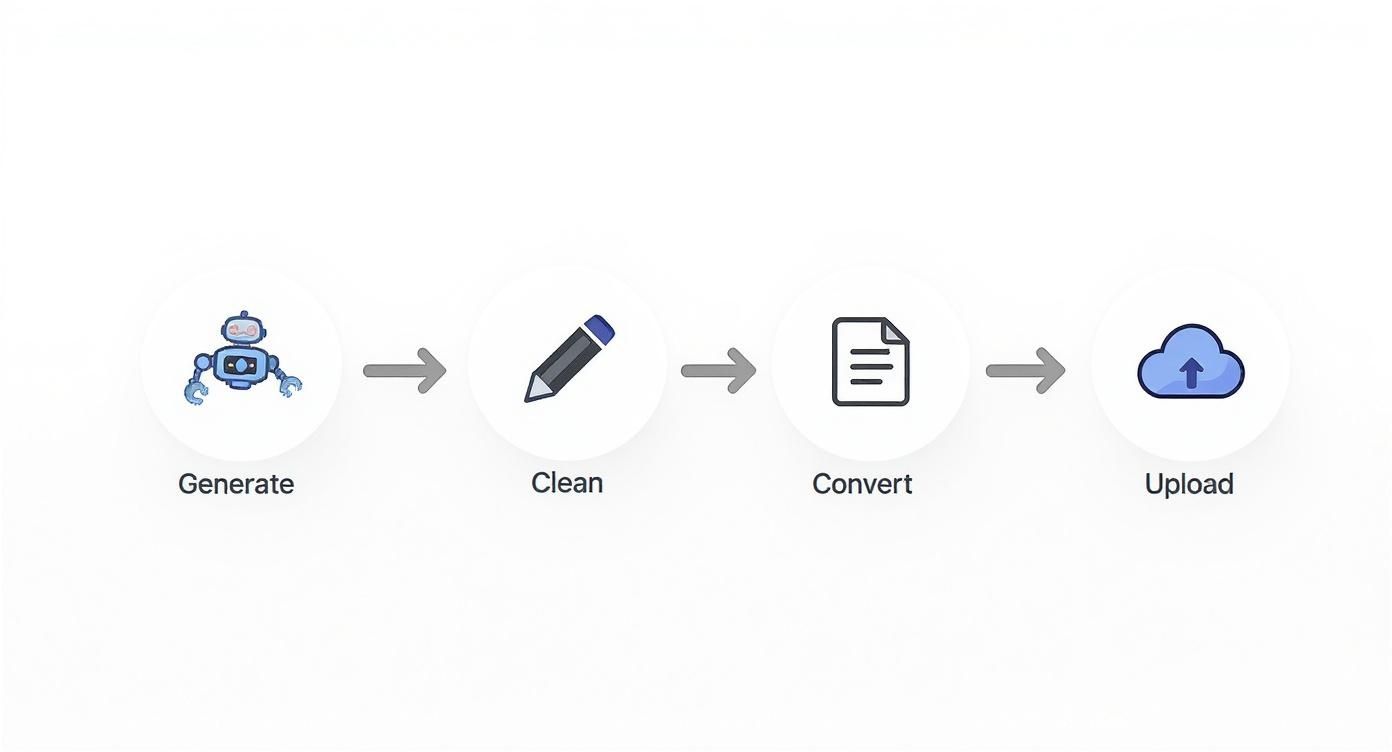
This Generate, Clean, Convert, Upload process delegates the repetitive work to technology, reserving your effort for the final quality control pass. A purpose-built tool like our Transcript Cleaner can accelerate the "clean" step significantly.
Comparing Captioning Workflows Manual vs Automated vs Hybrid
This table provides a direct comparison to guide your decision. Most creators select the hybrid model for its optimal balance of speed, quality, and resource investment.
| Attribute | Manual Captioning | Automated Captioning | Hybrid Workflow |
|---|---|---|---|
| Speed | Very slow (4-6 hours per video hour) | Near-instant (minutes) | Fast (5-10 minutes for a 10-min video) |
| Accuracy | Up to 100%, requires expertise | 90-98%+, struggles with jargon/audio | 99-100% after human review |
| Cost | "Free" if you DIY, but high time cost | Low cost, often part of SaaS tools | Minimal time cost, low tool cost |
| Best For | Mission-critical, short videos; technical content | High-volume content; clear, simple dialogue | Most creators; balancing quality and speed |
Mastering SRT Files for Full Caption Control
To achieve precise control over timing, multi-language tracks, and accuracy, you must use .SRT (SubRip Subtitle) files. An SRT file is a plain text document containing sequenced and timed caption data, separate from the video file itself. This format is the standard for creating closed captions for platforms like YouTube.
The Anatomy of an SRT File
Each caption in an SRT file is a block of text containing three distinct parts, separated by a blank line. Understanding this structure is essential for manual editing.
- Sequence Number: An integer that orders the caption blocks (1, 2, 3, etc.).
- Timecode: The start and end time for the caption's display, using the format
HH:MM:SS,ms(hours:minutes:seconds,milliseconds). The start and end times are separated by-->. - Caption Text: The text to be displayed, typically one or two lines.
Here is an example of two sequential SRT entries:
1
00:00:05,250 --> 00:00:07,600
This is the first line of dialogue.
2
00:00:08,100 --> 00:00:10,950
And this caption appears next,
with a second line for readability.
This universal format ensures compatibility with platforms like YouTube and editors like Adobe Premiere Pro. For a complete breakdown, see our guide on SRT format rules and examples.
A Practical Workflow for Creating and Refining SRTs
A hybrid workflow is the most efficient method for creating SRT files. It leverages automation for the initial transcription and manual editing for final polish.
- Generate a base file. Use an auto-caption feature in your editor or a transcription service to create an initial SRT file, completing about 95% of the work instantly.
- Correct the text. Open the file in a text or SRT editor. Read through the entire transcript, correcting errors in spelling, grammar, and punctuation. Remove filler words like "um" and "uh."
- Adjust the timing. Play the video alongside the SRT file. If a caption is out of sync, adjust its
HH:MM:SS,msvalues. A common fix is shifting a start time by 100-200 milliseconds to align with audio cues. - Optimize line breaks. For readability on mobile devices, manually split any single line longer than 42 characters. This prevents awkward text wrapping.
For example, this single line:
00:00:15,300 --> 00:00:19,800This is a very long caption line that will be difficult for viewers to read quickly on a mobile device.
Should be broken into two lines for better scannability:
00:00:15,300 --> 00:00:19,800This is a very long caption linethat will be difficult for viewers to read.
Choosing the Right Tool for SRT Editing
Using a dedicated tool accelerates the refinement process.
- Simple Text Editors (Notepad, TextEdit): Suitable for quick text corrections but inefficient for timing adjustments.
- Video Editing Software (Premiere Pro, Final Cut Pro): These NLEs provide a visual caption editor on the video timeline, allowing for precise drag-and-drop timing adjustments.
- Online SRT Editors: Web-based tools like ClickyApps' SRT Editor offer a focused environment with features like character-per-line counters and overlap detection, streamlining the cleanup process for creators.
Platform-Specific Captioning Guide
Captioning requirements vary by platform. Correct implementation depends on technical specifications and audience expectations.
YouTube: Closed Captions for SEO and Accessibility
For YouTube, the standard is closed captions via a separate .SRT file. This method is superior to burned-in captions for discoverability and accessibility.
Uploading an SRT file provides YouTube's algorithm with a complete, time-stamped transcript. This makes the entire video indexable, allowing it to rank for specific keywords spoken in the content, which can increase impressions from "suggested videos" by over 25%.
Closed captions also enable viewers to toggle them on or off and allow YouTube to auto-translate them into other languages. I worked with one creator whose international viewership increased by 18% in three months after adding Spanish and German SRT files to their tech tutorials.
TikTok & Instagram Reels: Open Captions for Engagement
For short-form vertical video on TikTok and Instagram Reels, open captions (text permanently burned into the video file) are the standard.
The viewing environment is fast-paced and often sound-off, making immediate visual context critical for retaining attention. For example, a marketing agency I consulted for A/B tested a campaign with and without open captions on Instagram Reels; the captioned versions saw a 40% higher completion rate and a 22% increase in shares.
To execute open captions effectively:
- Stay in the Safe Zone: Position all text within the central 80% of the screen to avoid being obscured by UI elements.
- Prioritize Legibility: Use a bold, sans-serif font (e.g., Montserrat Bold, 75-90 pt) with a high-contrast background element, like a solid black block or a 4px stroke. The text-to-background contrast ratio must be at least 4.5:1.
The global captioning market is projected to grow to $356.1 million by 2025, driven by the growth of mobile video. Source: Cognitive Market Research.
Decision Framework: When to Use Closed vs. Open Captions
Use this framework to select the appropriate caption type based on your platform and goals.
| Factor | Use Closed Captions (.SRT) | Use Open Captions (Burned-In) |
|---|---|---|
| Primary Platform | YouTube, Vimeo, educational platforms | TikTok, Instagram Reels, YouTube Shorts, LinkedIn |
| Main Goal | Maximize SEO, accessibility, and multi-language support | Maximize engagement, retention, and sound-off viewing |
| Content Type | Long-form tutorials, documentaries, interviews | Short, fast-paced content; trending audio clips |
| User Control | Viewer can turn captions on/off and customize appearance | Captions are always visible and part of the video itself |
Common Mistakes & Fixes
Issue → Synchronization Drift
In a 20-minute video, captions are perfectly synced at the start but lag by 2-3 seconds by the end. This is often caused by variable frame rates or minor discrepancies in editing.
Fix → Perform a timecode re-sync. In your SRT editor, find a clear audio peak near the end of the video (e.g., a clap or a hard consonant). Note its exact timestamp (HH:MM:SS,ms) and adjust the corresponding caption's start time to match. Use a tool function to proportionally shift all subsequent timecodes.
Issue → Illegible Burned-In Text
Open captions on a TikTok video are hard to read against a busy background, causing viewers to scroll past. The font is too thin, and there is no background element.
Fix → Follow strict legibility standards. Use a bold, sans-serif font (e.g., Poppins Bold). Place a semi-transparent (75-85% opacity) black box behind the text or add a 3-4 pixel stroke around it. Verify the text has a contrast ratio of at least 4.5:1 against its immediate background.
Issue → Verbatim Automated Transcripts
Auto-generated captions include every "um," "uh," and false start, making the text cluttered and unprofessional. Example: "So, um, the first thing... you know... is to, uh, connect the cable."
Fix → Perform a "clean read" edit. Your goal is to convey the intended message, not to create a verbatim record. Manually remove all filler words and disfluencies. For efficiency, use a tool like our Transcript Cleaner to automate the removal of common filler words.
Issue → Excessively Long Caption Lines
A single caption line contains 70 characters, which wraps into three awkward lines on a mobile screen, making it difficult to read quickly.
Fix → Enforce a character limit of 32-42 characters per line. Manually split longer sentences into two lines within the same SRT time block. This ensures text remains scannable and fits within platform safe zones.
Frequently Asked Questions
What is the functional difference between open and closed captions?
Closed Captions (CC) are a separate SRT file that viewers can toggle on or off. They are the standard for YouTube because they support SEO and accessibility. Open Captions (OC) are burned directly into the video file and cannot be turned off. They are standard for TikTok and Reels to maximize engagement in sound-off environments.
How exactly do captions improve video SEO?
Closed captions provide search engines like YouTube with a full, time-stamped text transcript of your video. This allows the algorithm to index the entire dialogue, enabling your video to rank for hundreds of specific long-tail keywords spoken in the content, not just those in the title and description. It turns your spoken words into indexable metadata.
What are the technical specs for styling burned-in captions?
For maximum readability on mobile:
- Font: Bold, sans-serif (e.g., Montserrat Bold, Poppins Bold).
- Contrast: Minimum contrast ratio of 4.5:1 against the immediate background.
- Background: Use a solid/semi-transparent background block or a 2-4 pixel stroke.
- Position: Keep text within the central 80% of the screen's height to avoid UI overlap.
How should captions be formatted for multiple speakers in an interview?
Use speaker labels to differentiate dialogue. Precede a speaker's line with their name or identifier followed by a colon (e.g., ANNA: That's the key metric.) or a dash (- Dr. Evans:). For added clarity, you can position one speaker's captions on the left side of the screen and the other's on the right.
Can I use the auto-captions from YouTube or TikTok without editing?
Use them as a first draft only. Platform auto-captions save 90-95% of transcription time but rarely achieve 100% accuracy, often failing on proper nouns, brand names, or technical jargon. Always perform a manual review to correct errors. This hybrid workflow provides professional results efficiently.
At ClickyApps, we build tools to make these workflows faster. Our SRT Editor helps you quickly clean up timing and formatting errors from any auto-generated caption file, ensuring your final output is professional and accurate.
Explore other tools to perfect your creator workflow:
- Transcript Cleaner
- Thumbnail Resizer
- YouTube Shorts Clip Finder
- Thumbnail Contrast Checker
- Video Aspect Ratio Converter
- Creator Captions Hub