Adding chapters to your YouTube videos increases average view duration and improves discoverability in search results. For content creators, this structured format makes long-form content navigable, respecting viewer time and signaling quality to the YouTube algorithm. This guide details the exact steps and optimization strategies to implement them effectively.
Table of Contents
Explore more guides in our Creator Tools Hub.
Quick Start
- Open your video's details page in YouTube Studio.
- Go to the Description box.
- Type a list of timestamps and chapter titles.
- The first timestamp must be
00:00.
- Include a minimum of three chapters.
- Ensure each chapter is at least 10 seconds long.
- Save changes. The chapters will appear on your video's timeline.
Why YouTube Chapters Are a Non-Negotiable
Implementing chapters transforms a passive viewing experience into an interactive one. You provide viewers with a clickable table of contents, allowing them to jump directly to sections of interest. This respects their time and makes your content a more effective resource.
This directly impacts key platform metrics. An internal YouTube study found videos with chapters see a 20% increase in average watch time and a 15% lift in viewer satisfaction ratings. The improved navigation also led to a 10% reduction in video abandonment rates. For a deeper dive, review the full analysis from YouTube.
Visualizing the User Experience
Chapters change how a viewer interacts with your video's timeline. Instead of a single progress bar, it becomes segmented into distinct, labeled blocks.
Caption: A YouTube timeline with chapters, where each colored segment represents a clickable section with a unique title.
Each block is a clickable link. Viewers can see the video's structure at a glance and navigate to specific information without aimlessly scrubbing through the content.
The SEO Advantage
Chapter titles function as metadata for YouTube and Google's search algorithms. This structured data provides a more nuanced understanding of the topics you cover, creating multiple entry points for search traffic.
For example, a video titled "Building a Custom PC" ranks for that primary term. With chapters like "02:15 How to Choose a CPU" and "08:40 Installing the Motherboard," the video can also rank for those specific long-tail queries. These chapter titles often appear as featured snippets in Google search, driving motivated viewers directly to the most relevant part of your content. This makes adding chapters to a YouTube video a critical SEO tactic.
 Caption: Implementing chapters is a direct path to improved video performance and discoverability.
Method 1: Adding Timestamps Manually in Your Description
The most direct way to add chapters is by listing timestamps in the video's description box. This method offers precise control and is efficient for videos produced from a detailed script or outline.
You are creating a table of contents that YouTube's system will parse. Adherence to strict formatting rules is required for the feature to function correctly.
 Caption: Manually adding timestamps in the description box provides granular control over chapter breaks and titles.
Formatting Rules
YouTube requires an exact format for timestamps to be recognized. Any deviation will cause the feature to fail. For a detailed walkthrough, see this easy step-by-step guide on how to add timestamps on YouTube.
- Start at 00:00. Your first timestamp must be
00:00. Forgetting this is the most common reason chapters fail to appear.
- Maintain Chronological Order. Timestamps must be listed sequentially from start to finish.
- Use Correct Time Format. Use
MM:SS for videos under an hour and HH:MM:SS for videos over an hour.
- Assign Clear Titles. Every timestamp requires a descriptive title. This text appears when viewers hover over the timeline.
Crafting SEO-Driven Chapter Titles
Treat chapter titles as metadata assets. Each title is a micro-headline indexed by search engines, creating new pathways for discovery.
Instead of a generic title like "Part 2," use a keyword-focused phrase like "How to Calibrate Your Monitor." This reframes the chapter as a direct answer to a potential search query.
Real-World Examples:
- For a 25-minute product review: A chapter titled
04:20 - Battery Life Test (50% Brightness) is more effective than 04:20 - Second Test. It targets users searching for specific performance metrics.
- For a 90-minute podcast: A title like
01:10:30 - Q4 Social Media Trends for B2B helps the video rank for niche industry topics.
Embedding secondary keywords into chapter titles expands your video's discoverability. Use a description builder to organize this content efficiently and ensure it is structured for maximum SEO impact. For an even faster workflow, you can turn a transcript into a video outline to generate chapter ideas.
Method 2: Using the YouTube Studio Chapter Editor
The YouTube Studio chapter editor offers a visual, hands-on approach. It allows you to add, edit, and drag chapter markers directly on the video's timeline, which is ideal for unscripted content where breaks are not predetermined.
This method is highly effective for vlogs, livestreams, or podcasts. You can identify natural topic shifts during playback and place markers with frame-level precision. This feature was introduced in May 2020; you can see the original announcement in YouTube's feature deep-dive.
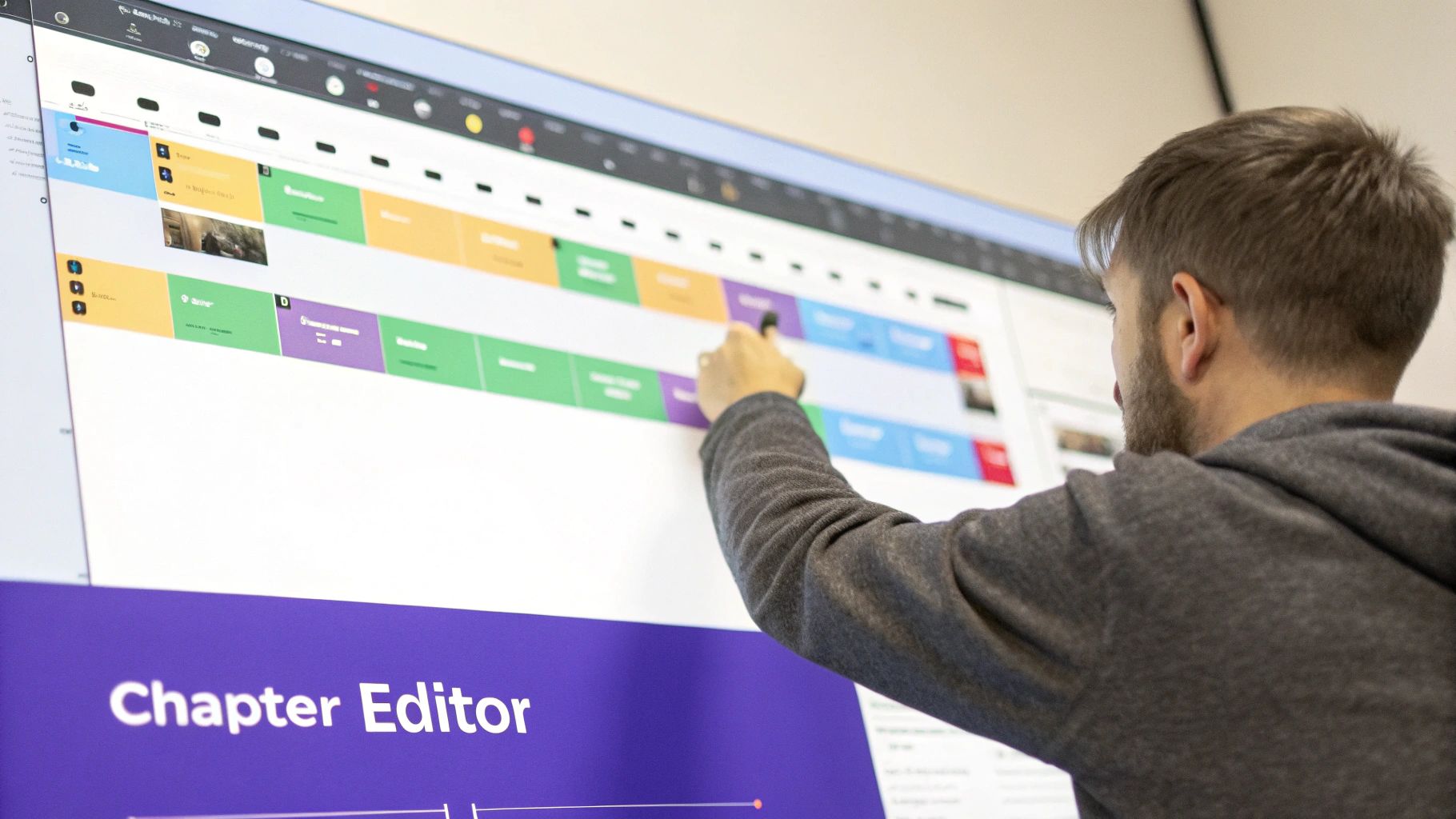 Caption: The YouTube Studio chapter editor allows for precise, visual placement of chapter markers on the video timeline.
Decision Framework: Studio Editor vs. Manual Timestamps
- Use the Studio Editor for: Unscripted content (podcasts, gameplay, live Q&As) where you need to find natural breaks during review. It is also effective for retroactively adding or adjusting chapters on older videos.
- Use Manual Timestamps for: Highly structured, scripted content (tutorials, product reviews). If you work from a detailed outline, typing pre-planned timestamps is faster.
The choice is between precision and speed. The visual editor offers greater accuracy for spontaneous content, while the manual method prioritizes efficiency for pre-planned videos.
Accessing and Using the Chapter Editor
The editor is integrated into the video details page in YouTube Studio.
- Navigate to YouTube Studio and select the video to edit.
- On the "Details" tab, scroll to the "Automatic chapters" section.
- Click the EDIT CHAPTERS button.
- Click "ADD CHAPTER" to place a new marker at the playhead's current position. Drag the marker to adjust its start time and enter a title.
Refining YouTube's AI-Generated Chapters
YouTube's AI often generates automatic chapters. Use these as a starting point, but always refine them for accuracy and clarity.
- Verify Accuracy: Confirm that each chapter starts and ends at a logical point. The AI can misinterpret pauses or music cues. Drag the markers to the correct positions.
- Optimize Titles: AI-generated titles are often generic. Rewrite them to be descriptive and keyword-rich. For example, change "AI topic" to "How AI Impacts Creator Workflows."
Using a clean transcript helps validate the AI's suggestions quickly. A tool like ClickyApps' Transcript Cleaner removes filler words, making it easier to identify key topics for chapter breaks.
Optimizing Chapters for SEO and Viewer Retention
Properly optimized chapters improve video navigation and feed structured data to search algorithms, turning a usability feature into a discovery tool.
YouTube reported that videos using the official chapters feature saw an average 14% increase in view duration and a 9% lift in shares.
Crafting Search-Friendly Chapter Titles
Each chapter title is an opportunity to be indexed for a specific search query.
- Instead of: "Conclusion"
- Use: "Final Verdict: Is the [Product Name] Worth It in 2024?"
- Instead of: "How It Works"
- Use: "Step-by-Step: Initial Setup and Configuration"
This reframing positions each chapter as a direct answer to a search, increasing the probability of Google featuring a video clip as a rich snippet. The same keyword intent principles from SEO apply here. For more information, read this comprehensive guide to optimizing content for SEO.
Finding the Optimal Chapter Density
The number of chapters should be balanced. Too few are unhelpful; too many create a cluttered timeline.
- For videos under 30 minutes: Add one chapter every 2-3 minutes.
- For long-form content (over 60 minutes): Space chapters every 5-10 minutes.
The goal is to mark clear topic shifts without interrupting the viewing experience.
Structuring for "How-To" and "What-Is" Searches
Align your chapter structure with common search formats to capture high-intent traffic.
Real-World Example: 15-Minute Video Editing Tutorial
A weak structure is "Intro," "Middle Part," "Outro." A search-optimized structure is:
00:00 What Is Color Grading?02:15 How to Import Footage into the Timeline04:30 Applying a Basic LUT for Color Correction07:00 Adjusting White Balance and Exposure10:45 Recommended Export Settings for Instagram Reels
Each title directly matches a high-intent search query. This provides clear value to both the viewer and the search algorithm. For more advanced tactics, see our guide on how chapters and links boost retention and CTR.
Common Mistakes & Fixes
Issue → Fix
- Issue: Chapters are not appearing on the video timeline.
- Fix: Ensure your timestamp list meets all three core rules: starts with
00:00, has at least three entries, and each chapter is a minimum of 10 seconds long. The 00:00 rule is the most common cause of failure.
- Issue: Timestamps in the description are plain text, not clickable links.
- Fix: Check your timecode formatting. It must be
MM:SS or HH:MM:SS. For example, 3:45 is incorrect; 03:45 is correct. The leading zero is required for minutes under 10.
- Issue: Chapters disappeared after editing the video's description.
- Fix: An edit likely introduced a formatting error. Re-verify the three core rules. A common error is accidentally deleting a colon (e.g.,
04:15 becomes 0415) or removing the 00:00 entry.
- Issue: Chapter titles are cut off on the mobile interface.
- Fix: Keep titles under 40 characters. Front-load important keywords so the topic is clear even if the title is truncated. For example, "Camera Sensor Comparison" is better than "A Detailed Comparison of Full-Frame vs. APS-C Sensors."
Frequently Asked Questions
1. Can I edit chapters after a video is published?
Yes. You can add, edit, or remove chapters from a live video at any time through YouTube Studio. Changes typically update on the live video within 30-60 seconds and do not affect the video's URL or existing analytics.
2. Do chapters affect YouTube ad placements?
No, chapters do not directly control mid-roll ad placements. However, by improving viewer retention, chapters can increase the likelihood that viewers reach scheduled ad breaks, which may increase total ad impressions.
3. Is there a limit to the number of chapters I can add?
There is no hard limit on the number of chapters, but your description is limited to 5,000 characters. For usability, a chapter every 2-5 minutes is a practical guideline. Overloading the timeline with too many chapters degrades the user experience.
4. Can I have chapters on a YouTube Short?
No, the chapters feature is not available for YouTube Shorts. It is designed for standard and long-form video content where navigation through distinct sections provides value.
5. Why are my chapter titles truncated on the timeline?
This is a character length issue, especially on mobile devices where UI space is limited. Keep titles concise (under 40 characters) and place keywords at the beginning to ensure the topic is understood even if the full title is not visible.
Related ClickyApps Creator Tools: