A high-performing thumbnail is a critical factor in a video's click-through rate (CTR), directly impacting views. This guide helps working creators select the most efficient thumbnail maker to reduce production time, enabling data-driven design choices that increase viewership. It matters because an optimized workflow frees you to focus on content, not on fighting complex software.
Table of Contents
Explore more tools in our Creator Tools Hub.
Quick Start
- Define Goal: Clarify the video's core message in 3-5 words.
- Select Tool: Choose a maker from the list that fits your workflow (e.g., ClickyApps for speed, TubeBuddy for A/B testing).
- Create Canvas: Start with a 1280×720 pixel canvas.
- Compose: Add a high-contrast background, a primary subject (face or object), and your 3-5 word title text. Position text 8-16% inside all edges.
- Check Readability: Use a contrast checker to ensure a WCAG AA rating for text. Shrink the thumbnail to 150px wide to test legibility on small screens.
- Export: Save as a JPG or PNG under 2 MB.
1. ClickyApps
ClickyApps is engineered for creators who prioritize speed and privacy. It is a browser-based toolkit that requires no signup for its core tools, processing all images locally on your machine. This client-side approach ensures your unreleased content remains private and allows for a zero-friction workflow, reducing the time from asset import to a publish-ready 1280x720 JPEG to under 3 minutes.
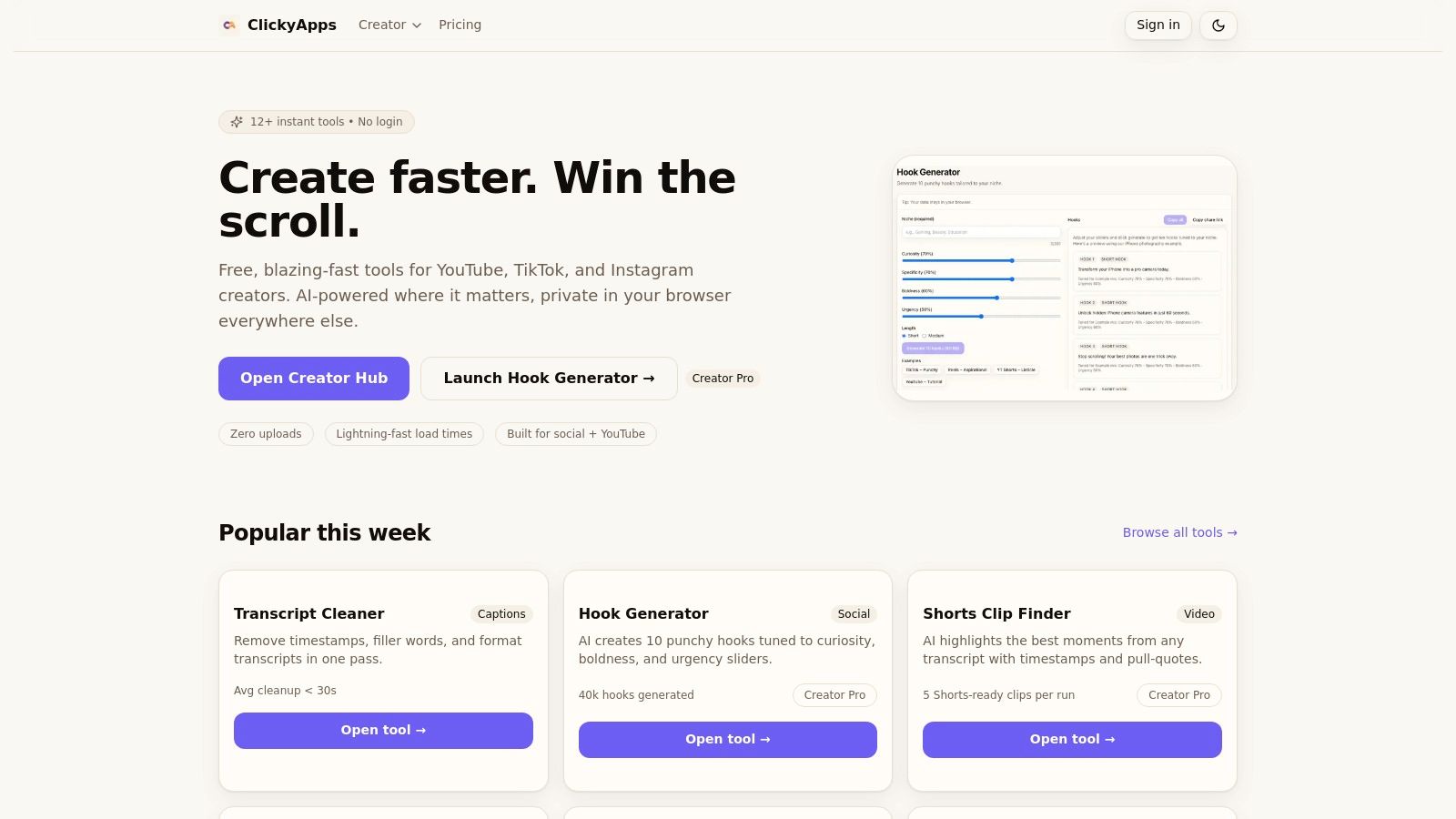 Figure 1: The ClickyApps Thumbnail Resizer tool interface, showing safe-zone overlays to prevent UI overlaps.
The platform focuses on utility over from-scratch design. For example, its Thumbnail Resizer includes built-in safe-zone overlays to prevent YouTube's UI (like the "Watch Later" icon or timestamp) from obscuring critical text. Its integrated Contrast Checker helps verify that your text meets WCAG AA accessibility standards, a technical detail that directly improves readability and CTR. For more specifics, you can review YouTube's recommended thumbnail dimensions.
Key Features & Use Cases
- No-Login Workflow: Ideal for one-off edits. Open the tool, upload an image, and start editing instantly.
- Client-Side Privacy: Files are never uploaded to a server, a secure choice for pre-release content.
- Integrated Toolkit: Offers 11+ tools for captions, video, and social media, consolidating production tasks.
- Practical Utilities: The built-in contrast checker and safe-area guides support data-informed design.
Decision Framework: Use ClickyApps when speed and privacy are non-negotiable and you need to perform utility-focused tasks like resizing, checking contrast, or adding simple text overlays. It is less suited for complex, multi-layer graphic design from a blank canvas.
Website: https://clickyapps.com
2. Adobe Express
Adobe Express is an all-in-one design tool for creators who need professional-grade assets without the complexity of Photoshop. It excels for users within the Adobe ecosystem, offering deep integration with Adobe Stock's library of millions of photos and fonts. This provides high-quality resources directly within the editor, eliminating the need to source assets externally.
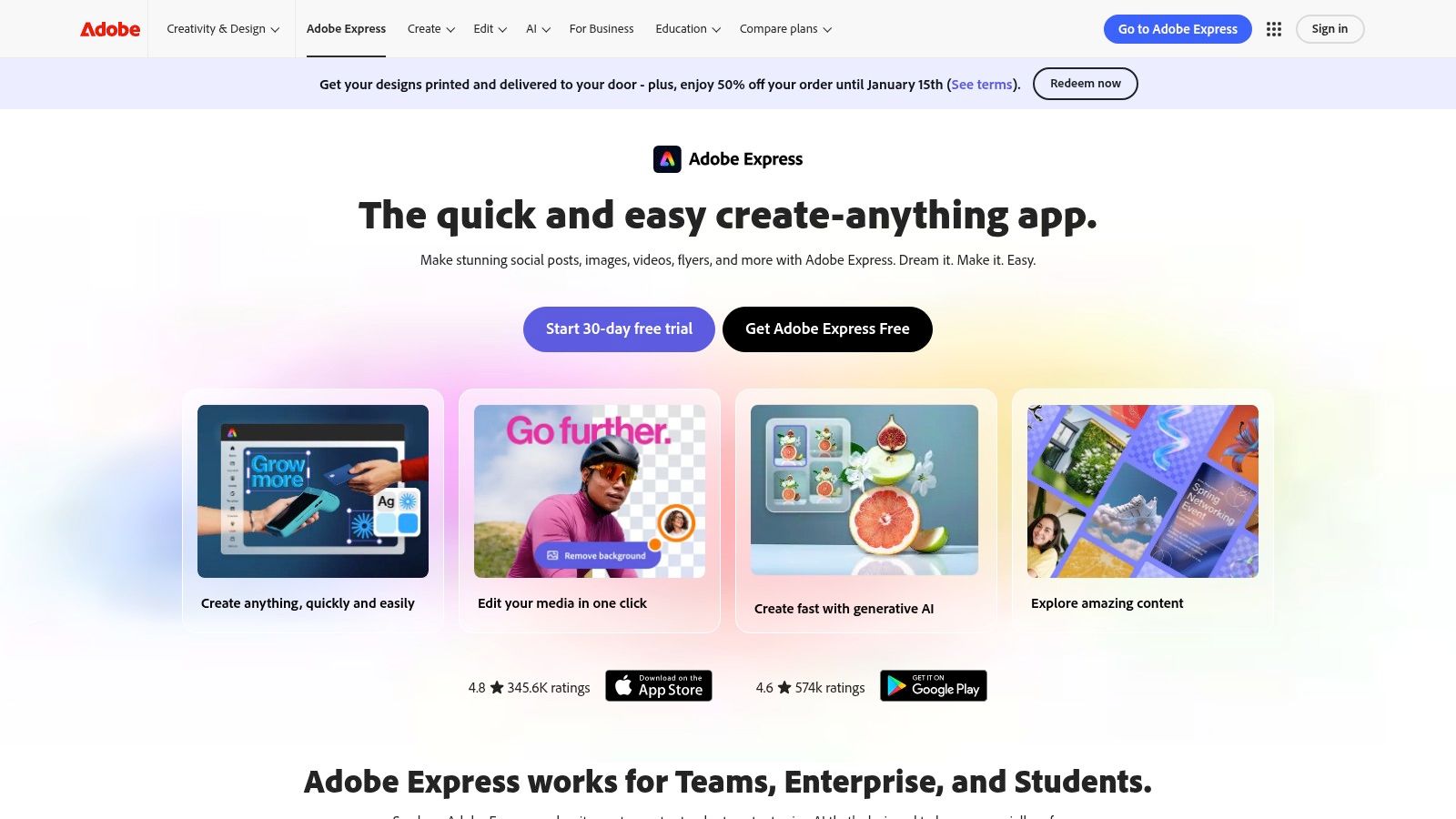 Figure 2: The Adobe Express editor displaying YouTube thumbnail templates and customization options.
The platform provides a dedicated YouTube thumbnail workflow with thousands of professional templates. Its AI features, like the "Generative Fill" tool, allow you to add or remove objects from an image using a text prompt, which can reduce editing time by 5-10 minutes per design. Designs sync automatically between web and mobile apps, supporting flexible production schedules.
Key Features & Assessment
- Adobe Stock Integration: Access a massive library of professional photos, illustrations, and Adobe Fonts.
- AI-Powered Editing: Use text prompts to generate design concepts or modify existing images.
- Brand Kits (Premium): Store logos, colors, and fonts to apply consistent branding with one click.
- Cross-Platform Sync: Designs sync between web and mobile apps for on-the-go editing.
Decision Framework: Choose Adobe Express if you prioritize high-quality stock assets, require consistent branding across a team, and value a polished, cross-platform experience. It's ideal for those who manage multiple channels and need to streamline brand application. When finalizing a design, always verify your text and background colors are accessible to ensure legibility for all viewers.
3. Canva
Canva is a template-driven design tool optimized for non-designers needing high-quality visuals quickly. Its primary strength is a vast library of templates combined with an intuitive drag-and-drop editor. This workflow reduces the time to create a professional-looking thumbnail to 5-7 minutes for an experienced user.
 Figure 3: Canva's drag-and-drop interface, demonstrating the ease of customizing a YouTube thumbnail template.
The platform is structured around guided workflows with categories for YouTube thumbnails, ensuring all designs start at the correct 1280x720 resolution. The Pro version unlocks a one-click Background Remover tool and Brand Kits, which store your channel's logos, fonts, and color palettes for instant application. This feature is crucial for maintaining brand consistency across dozens or hundreds of videos.
Key Features & Assessment
- Vast Template Library: Access over a million design elements and a large, dedicated section for YouTube thumbnails.
- Drag-and-Drop Editor: The intuitive interface allows for rapid addition and editing of elements.
- Brand Kits (Pro): Store channel logos, colors, and fonts to maintain brand consistency.
- Collaboration Tools (Pro): Allows team members to comment and share designs for feedback.
Decision Framework: Use Canva when speed and ease of use are the highest priorities, especially if you rely on templates. It is the best choice for beginners and solo creators who need to produce professional thumbnails without a design background. For advanced design principles, review these YouTube thumbnail best practices.
4. Kapwing
Kapwing is a browser-based editor that unifies image and video editing, making it an efficient choice for creators producing both short-form video and thumbnails. You can pull a still frame from a video at a specific timestamp (e.g., 00:01:14) and convert it into a thumbnail within the same project, streamlining the production pipeline. This eliminates the need for separate screen capture and image editing applications.
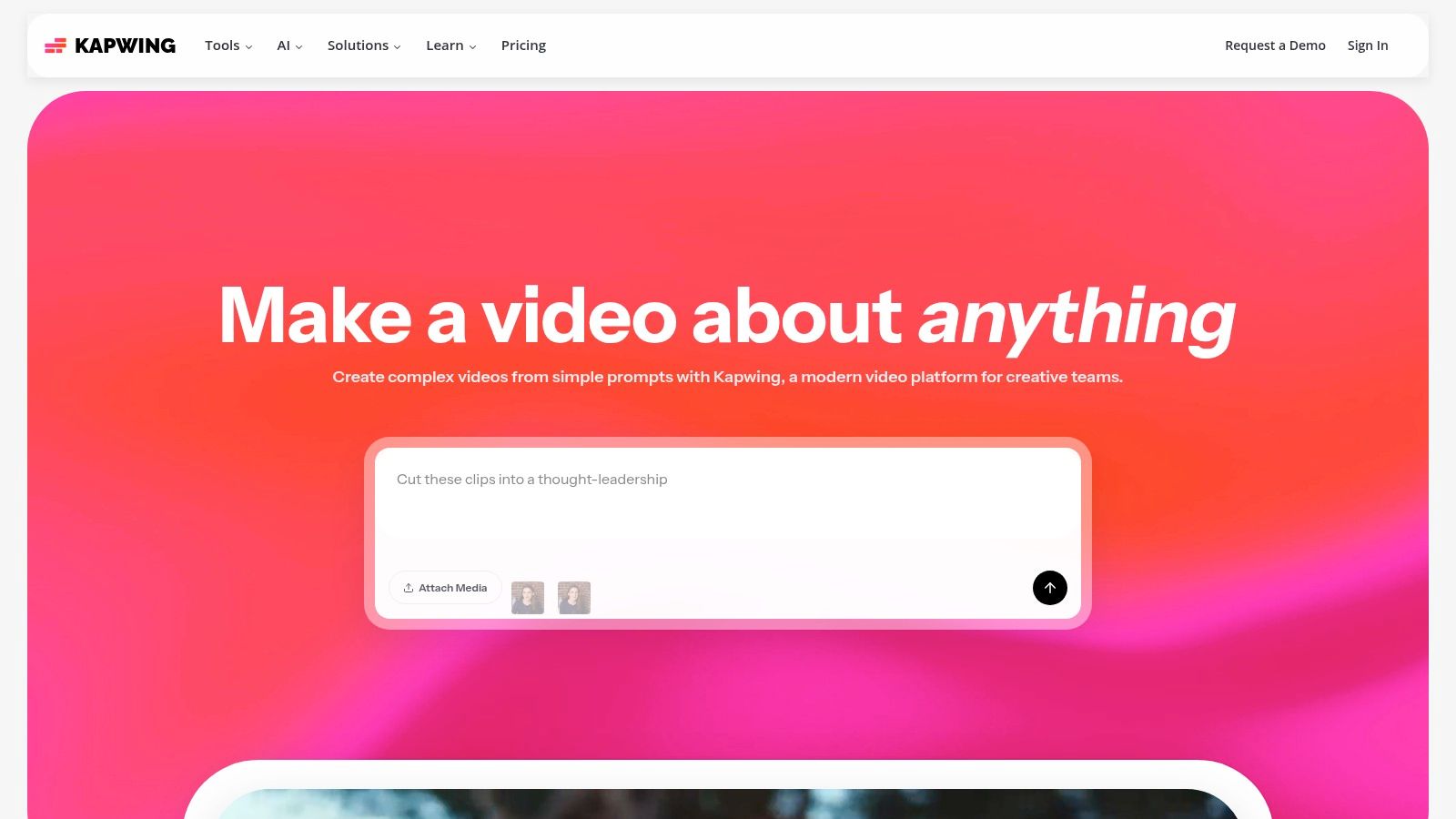 Figure 4: The Kapwing workspace, which integrates video timelines and image editing tools.
The platform simplifies setup with correctly sized 1280x720 YouTube thumbnail canvases and a library of templates. The free tier is functional but places a small watermark on exported images and limits video exports to 4 minutes. Upgrading to a paid plan removes these restrictions and provides access to features like Clean Audio, which automatically reduces background noise.
Key Features & Assessment
- Integrated Video and Image Editing: Design a thumbnail in the same workspace used for editing Shorts or Reels.
- Pre-Sized Canvases and Templates: Start with a canvas correctly sized at 1280x720 pixels or use a template.
- Team Workspaces: Supports collaborative projects for shared access and editing.
- Frame-to-Image Workflow: Directly convert a video frame into an editable image layer.
Decision Framework: Kapwing is the optimal choice for creators managing both video editing and graphic design tasks in a single workflow. It is particularly effective for teams producing short-form content for TikTok or Instagram alongside their primary YouTube videos.
5. Snappa
Snappa is a web-based graphics tool designed for rapid production of social media graphics and YouTube thumbnails. Its core advantage is a streamlined drag-and-drop interface and a library of over 5 million royalty-free photos and graphics, all licensed for commercial use. This eliminates the risk of copyright claims from improperly sourced images.
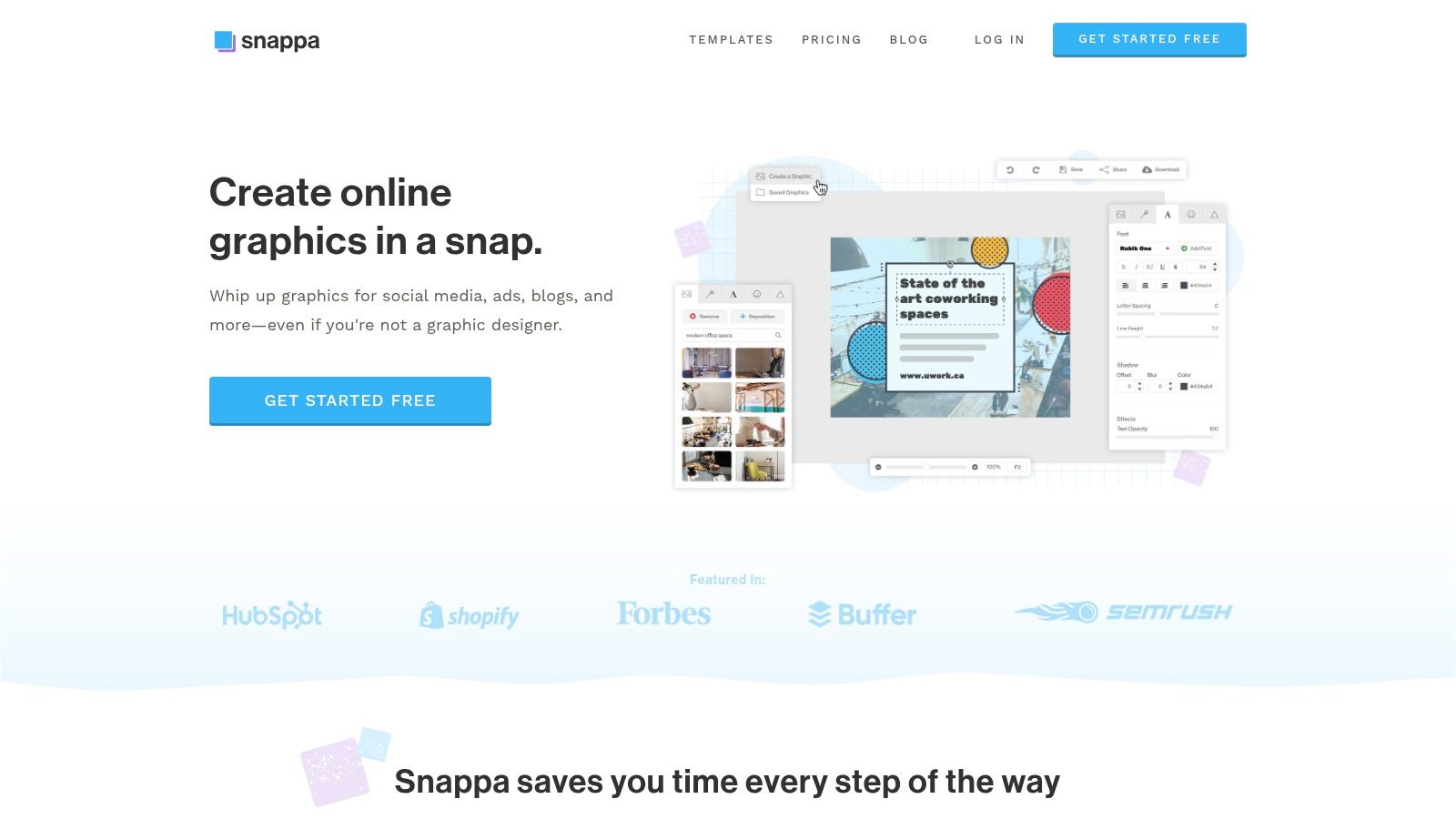 Figure 5: Snappa's interface highlights its pre-sized templates and accessible design elements.
The tool provides pre-sized templates at 1280x720 pixels, removing setup friction. The free plan is limited to three downloads per month, which serves as a functional trial but is insufficient for active creators. The premium plan includes a one-click background removal tool, useful for isolating subjects for professional-looking compositions.
Key Features & Assessment
- Vast Asset Library: Access to over 5 million royalty-free, high-resolution stock photos and graphics.
- Speed-Focused Workflow: The intuitive interface allows for a fast export process, often under 5 minutes per thumbnail.
- Pre-Sized Templates: Provides perfectly dimensioned templates for YouTube thumbnails.
- Background Remover (Premium): A one-click tool for creating transparent cutouts of subjects.
Decision Framework: Select Snappa if your top priority is speed and you need access to a large, commercially licensed asset library. It is well-suited for creators producing content daily who require a reliable, no-fuss design solution, though active users will need a paid subscription due to the download limit.
6. Fotor
Fotor is a photo editor and design platform featuring a dedicated AI Thumbnail Maker that generates high-contrast designs from text prompts. It uses AI to suggest layouts with bold text and expressive imagery, focusing on elements that increase CTR. This is effective for creators in competitive niches like gaming or tech reviews where visual distinction is key.
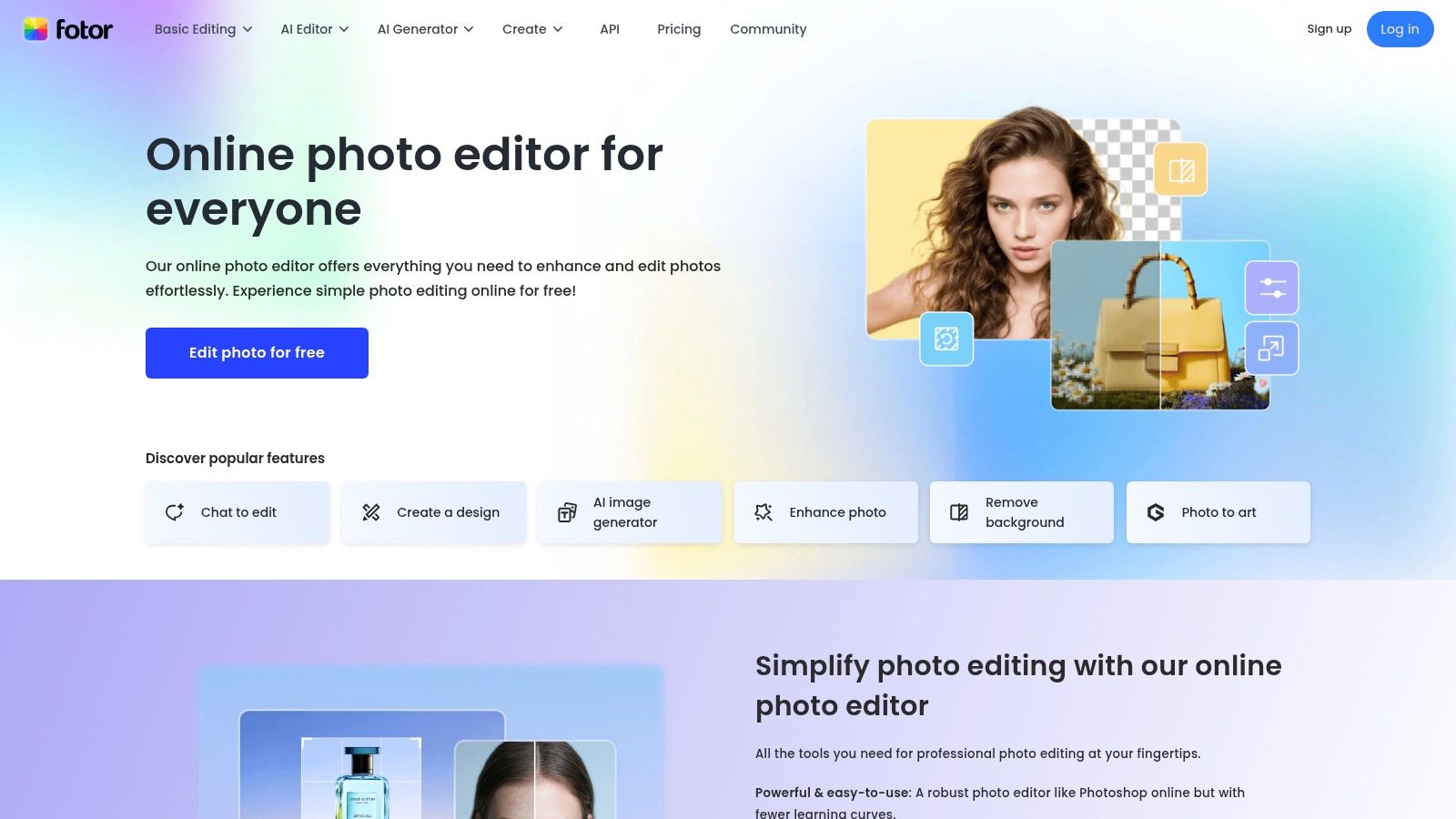 Figure 6: Fotor's AI thumbnail generator interface, showing style selection options.
You input a video title, and Fotor generates several distinct concepts. You can guide the AI by selecting styles like "minimalist" or "bold" to align with your channel's aesthetic. Its integrated photo editor also provides tools for adjusting exposure, saturation, and sharpness, allowing for fine-tuning of image assets directly within the platform. A subscription is required for high-resolution exports.
Key Features & Assessment
- AI-Driven Design: Generates click-oriented visuals from a simple text prompt.
- Adjustable AI Styles: Users can guide the AI's creative direction by selecting pre-defined visual styles.
- Series Templates: Provides templates for creating consistent thumbnails for video series.
- Integrated Photo Editor: Offers advanced tools for image retouching and manipulation.
Decision Framework: Fotor is best for creators who want an AI assistant to generate initial design concepts focused on maximizing CTR. It is particularly useful for producing a high volume of thumbnails without starting from a blank canvas each time.
7. Placeit by Envato
Placeit by Envato is a template-driven design platform ideal for creators needing consistent channel branding with minimal design effort. Its main strength is its library of template "packs" that include matching thumbnails, intros, end cards, and channel banners. This allows for a cohesive visual identity across an entire channel.
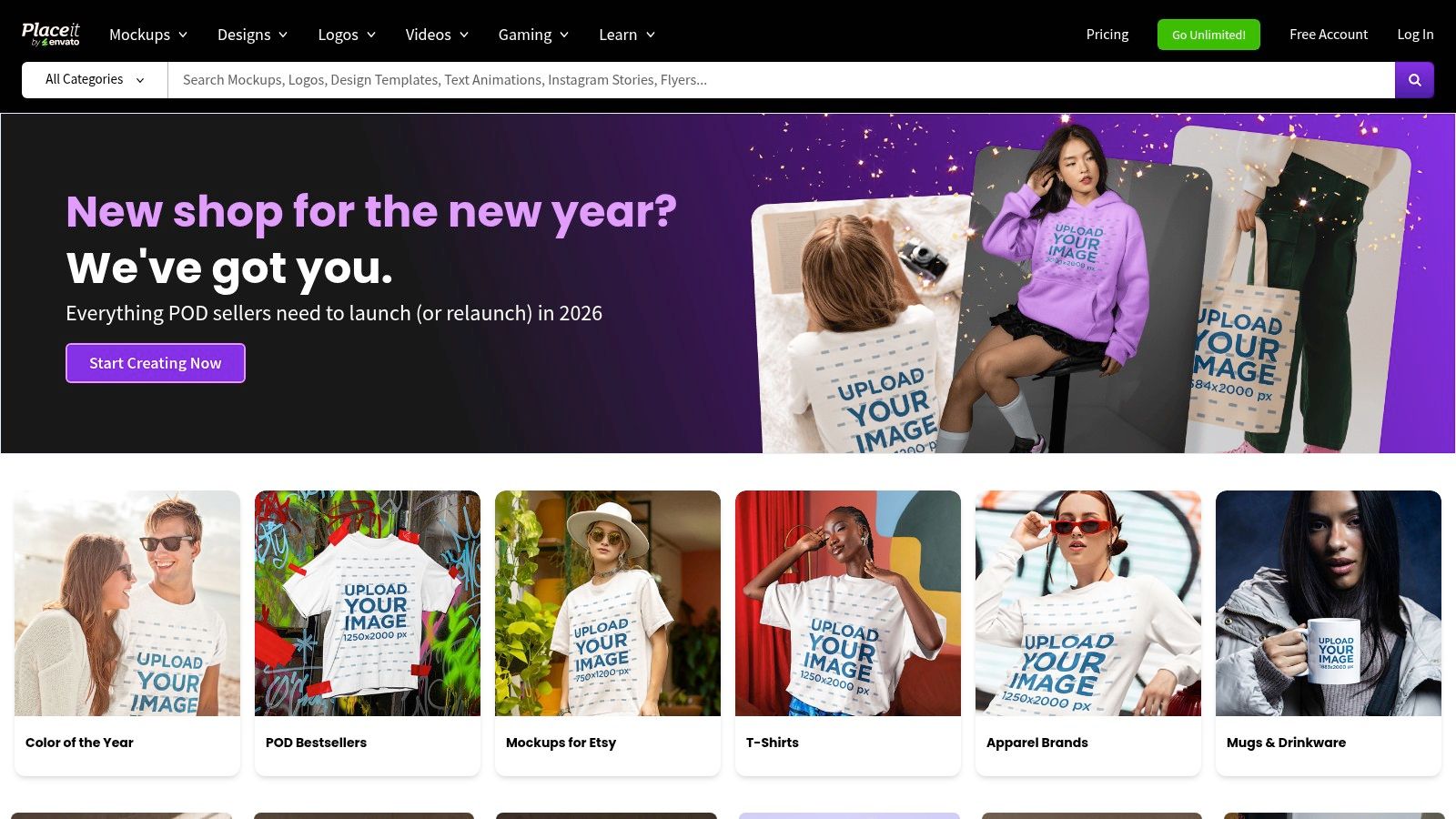 Figure 7: The Placeit template library, featuring a wide array of options for different YouTube niches.
The workflow is highly streamlined: select a template, swap text and images, and download. This process is efficient for non-designers or teams seeking brand consistency. For example, a gaming channel could use a "Let's Play" template pack, changing only the episode number and a single screenshot for each new video, reducing thumbnail creation time to 2-3 minutes.
Key Features & Assessment
- Vast Template Library: Offers thousands of professionally designed templates and channel branding kits.
- Fast, Guided Editing: A simple interface allows for quick modifications within a predefined template.
- Flexible Purchase Model: Buy a single design or subscribe for unlimited access to all templates.
- Integrated Branding: Easily create matching channel assets using coordinated template packs.
Decision Framework: Choose Placeit if you prioritize speed and brand consistency over granular creative control. It is an excellent choice for generating on-brand graphics without design skills, making it a powerful tool for maintaining a professional appearance with maximum efficiency.
8. PicMonkey
PicMonkey is a photo editor and design platform that excels for creators who feature their face in thumbnails. Its strength lies in powerful portrait touch-up tools, such as skin smoothing and teeth whitening, which are integrated directly into the editor. This saves the time of round-tripping an image through a separate photo editing application like Lightroom or Photoshop.
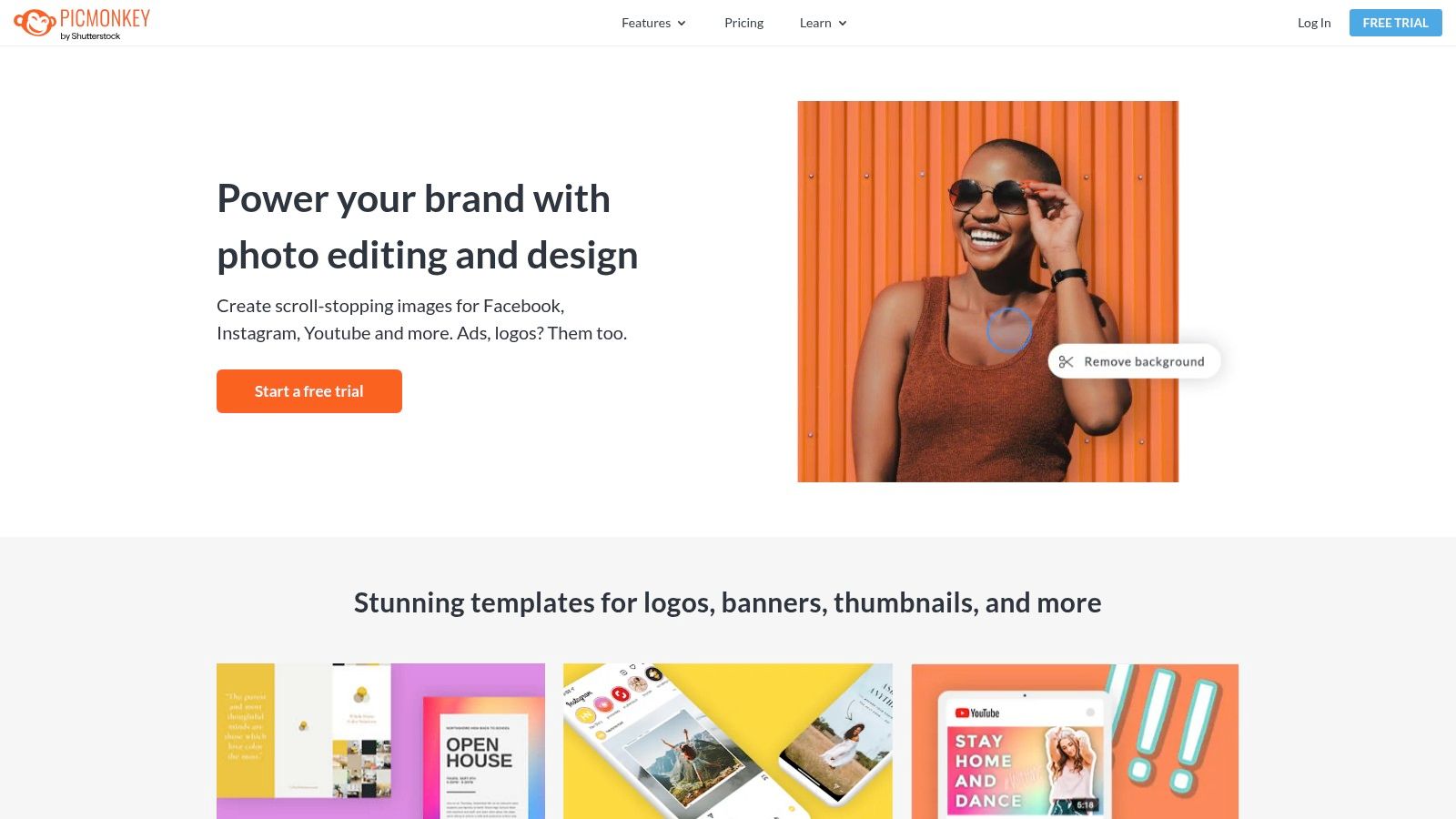 Figure 8: The PicMonkey editor, which combines design templates with advanced photo touch-up tools.
The platform allows you to save a design as a reusable project. For a series, you can create a master template, then duplicate and modify it for new videos by swapping out a headshot and changing text. This process ensures perfect consistency in layout, font size, and color palette. Most export and advanced features require a paid subscription.
Key Features & Assessment
- Advanced Touch-Up Tools: Retouch portraits with dedicated tools for enhancing faces.
- Reusable Projects: Save a design as a master project to quickly create consistent series thumbnails.
- Smart Resize (Pro): Automatically adapts a single design to fit other social media dimensions.
- Brand Kits (Pro): Store logos, fonts, and color palettes for instant application.
Decision Framework: PicMonkey is the best option for creators who use high-quality portraits in their thumbnails and need an integrated solution for both design and photo retouching. Its reusable project feature is highly effective for YouTubers producing series-based content.
9. VistaCreate (by Vista)
VistaCreate is a versatile web editor designed for creators and teams who produce a variety of branded assets. Its key differentiator is an integrated social media scheduler, allowing you to design a thumbnail and schedule its promotional post for Twitter or Facebook directly from the platform. This consolidates two separate tasks into one workflow.
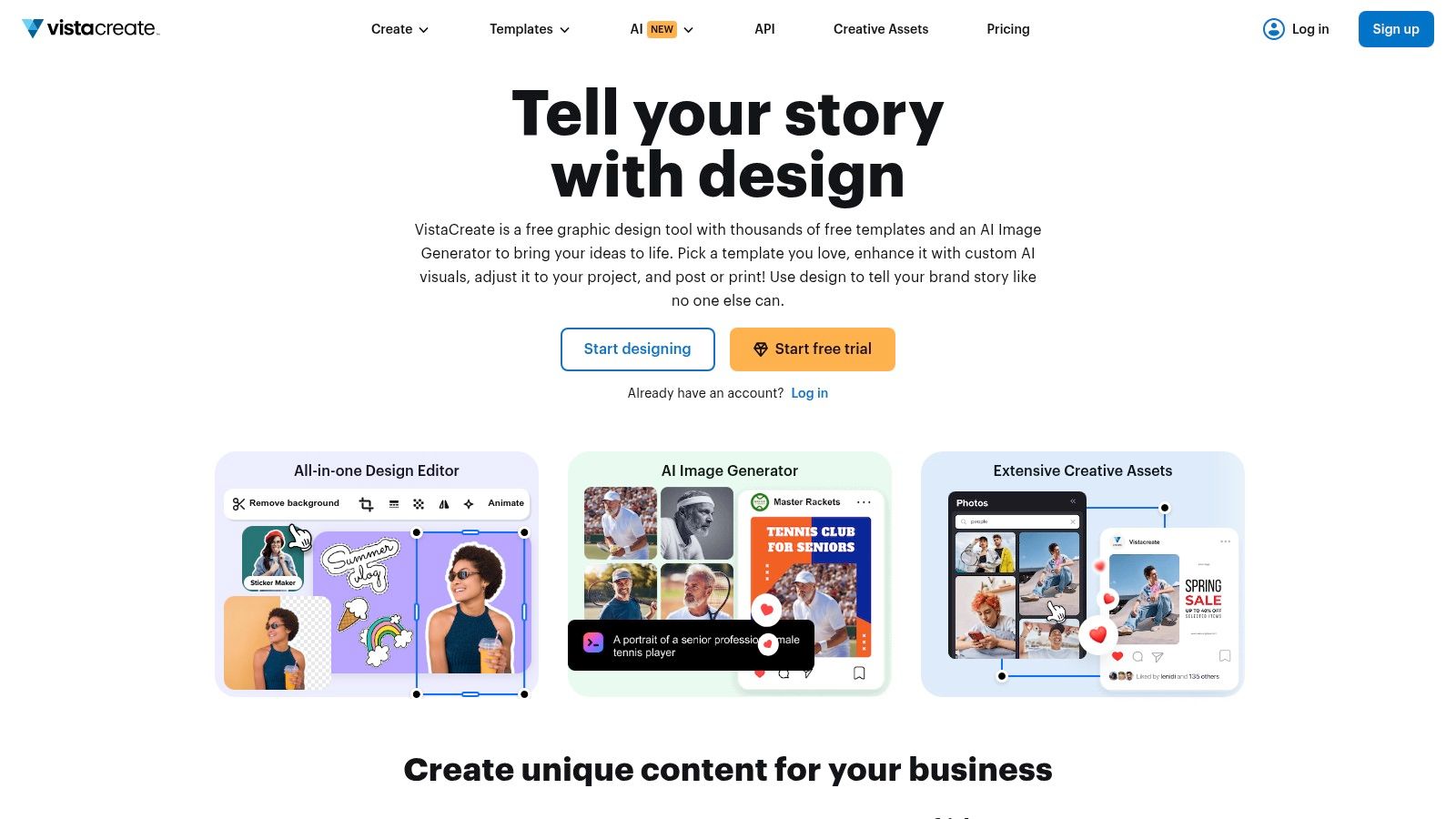 Figure 9: The VistaCreate editor, which provides a large library of templates and design assets.
The platform offers over 100,000 free templates, providing extensive starting points. While advanced features like the background remover and Brand Kits are reserved for the Pro plan, the free version delivers sufficient functionality for producing high-quality thumbnails. The free tier offers 10 GB of storage for files and projects.
Key Features & Assessment
- Large Free Template Library: Over 100,000 templates are available in the free Starter plan.
- Built-in Social Scheduler: Design a thumbnail and schedule associated social media posts.
- Brand Kits (Pro): Store logos, color palettes, and fonts for one-click brand application.
- Team Collaboration (Pro): Enables teams to work on designs in a shared space.
Decision Framework: VistaCreate is best for creators and social media managers who want an all-in-one tool for design and scheduling. The Pro plan’s team features are ideal for small businesses aiming to standardize their visual identity across platforms.
10. Pixlr
Pixlr is a lightweight, in-browser photo editor that offers a suite of tools for quick, image-focused results. It is split into two modes: Pixlr X for simple, template-based designs and Pixlr E for more advanced, layer-based editing similar to Photoshop. This dual-editor approach caters to both beginners and users needing granular control over layers and masks.
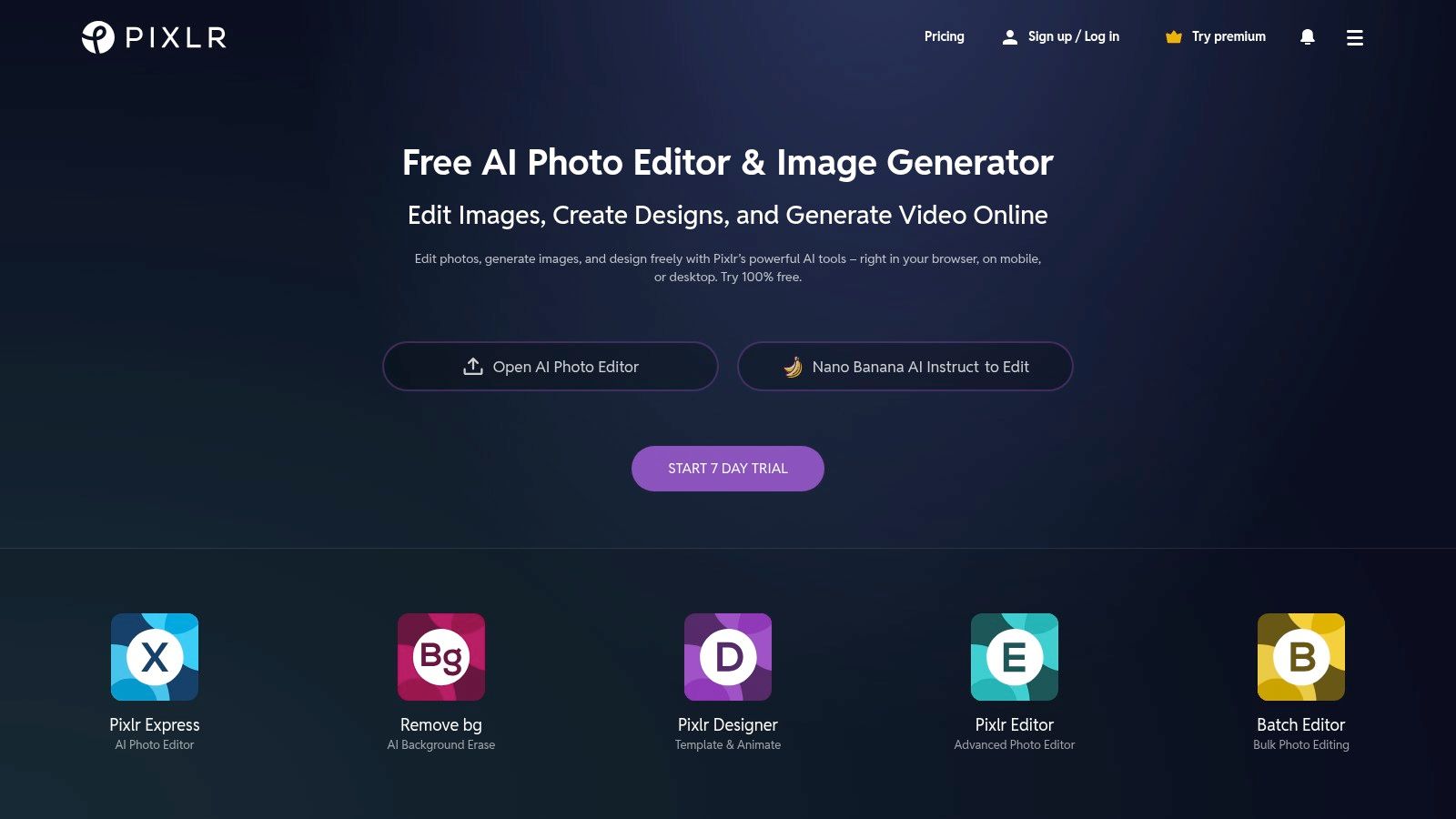 Figure 10: The Pixlr editor provides a range of tools for both simple and complex image manipulation.
The platform's AI background remover is effective for creating cutouts, one of the most common thumbnail editing tasks. The free tier is functional but ad-supported. For example, a creator could use Pixlr E to composite a cutout of themselves over a game screenshot, add a stroke effect for visibility, and export the final image in under 5 minutes.
Key Features & Assessment
- Dual Editors (Pixlr X/E): Choose between a simple editor (X) or an advanced, layer-based one (E).
- AI-Powered Tools: Features like the one-click background remover speed up common editing tasks.
- Affordable Premium Tiers: Offers competitive pricing for an ad-free experience and AI credits.
- Templates and Elements: A solid selection of templates, overlays, and icons is available.
Decision Framework: Use Pixlr for fast, in-browser photo editing on a budget. It is an ideal choice for making quick cutouts, adding text overlays, and performing other image-first edits without the overhead of more comprehensive design suites.
11. BeFunky
BeFunky is an online editor designed for creators who want a straightforward path to creating effective visuals without a steep learning curve. Its dedicated YouTube Thumbnail Maker offers pre-sized templates and practical tutorials. Its key feature is the ability to save projects as editable templates, which streamlines the creation process for series or branded content.
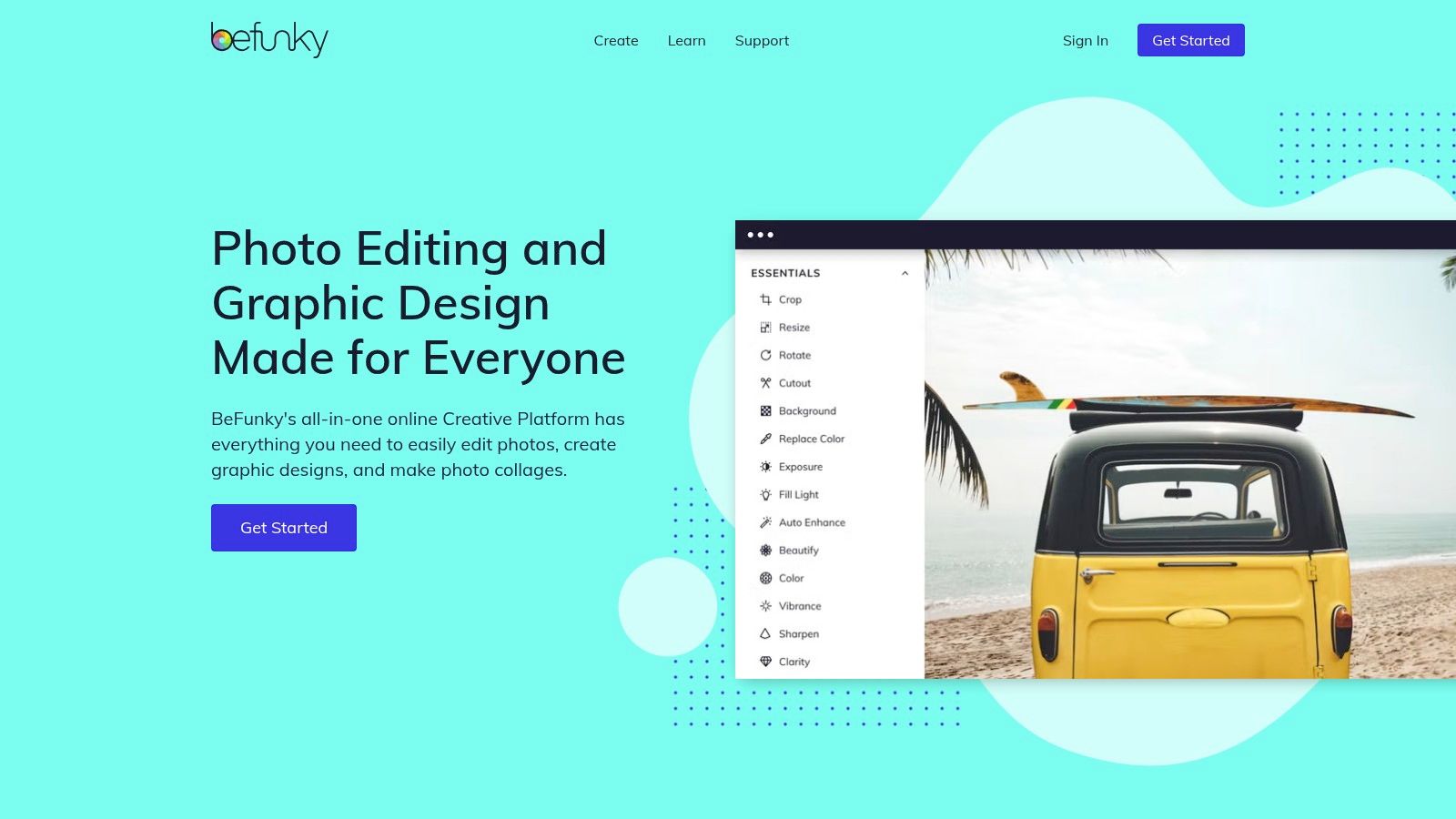 Figure 11: The BeFunky photo editor, demonstrating its range of adjustment tools for image enhancement.
For a weekly podcast, a creator could design one master thumbnail template with their show title and logo placement fixed. For each new episode, they would open the template, replace the guest's headshot, update the episode number, and export. This reduces a 15-minute task to under 3 minutes. The paid BeFunky Plus tier is required for the AI Background Remover and other advanced tools.
Key Features & Assessment
- Beginner-Focused Templates: A collection of pre-sized, easy-to-customize YouTube thumbnail templates.
- Reusable Projects: Save any design as a personal, editable template to speed up workflow.
- AI Tools (Premium): The Plus plan unlocks an AI Background Remover and Object Remover.
- Integrated Tutorials: Provides practical guides on designing high-impact thumbnails.
Decision Framework: BeFunky is best for beginners and creators who prioritize simplicity. Its reusable project feature makes it an excellent choice for YouTubers producing a series who need to maintain a consistent visual style without starting from scratch.
12. TubeBuddy
TubeBuddy is a browser extension that integrates tools directly into the YouTube Studio dashboard. It is not a standalone design app but a data-driven toolkit for optimizing thumbnails within your existing workflow. Its key differentiator is the Thumbnail A/B Testing feature (paid tier), which allows you to run a controlled test between two thumbnail versions on a live video.
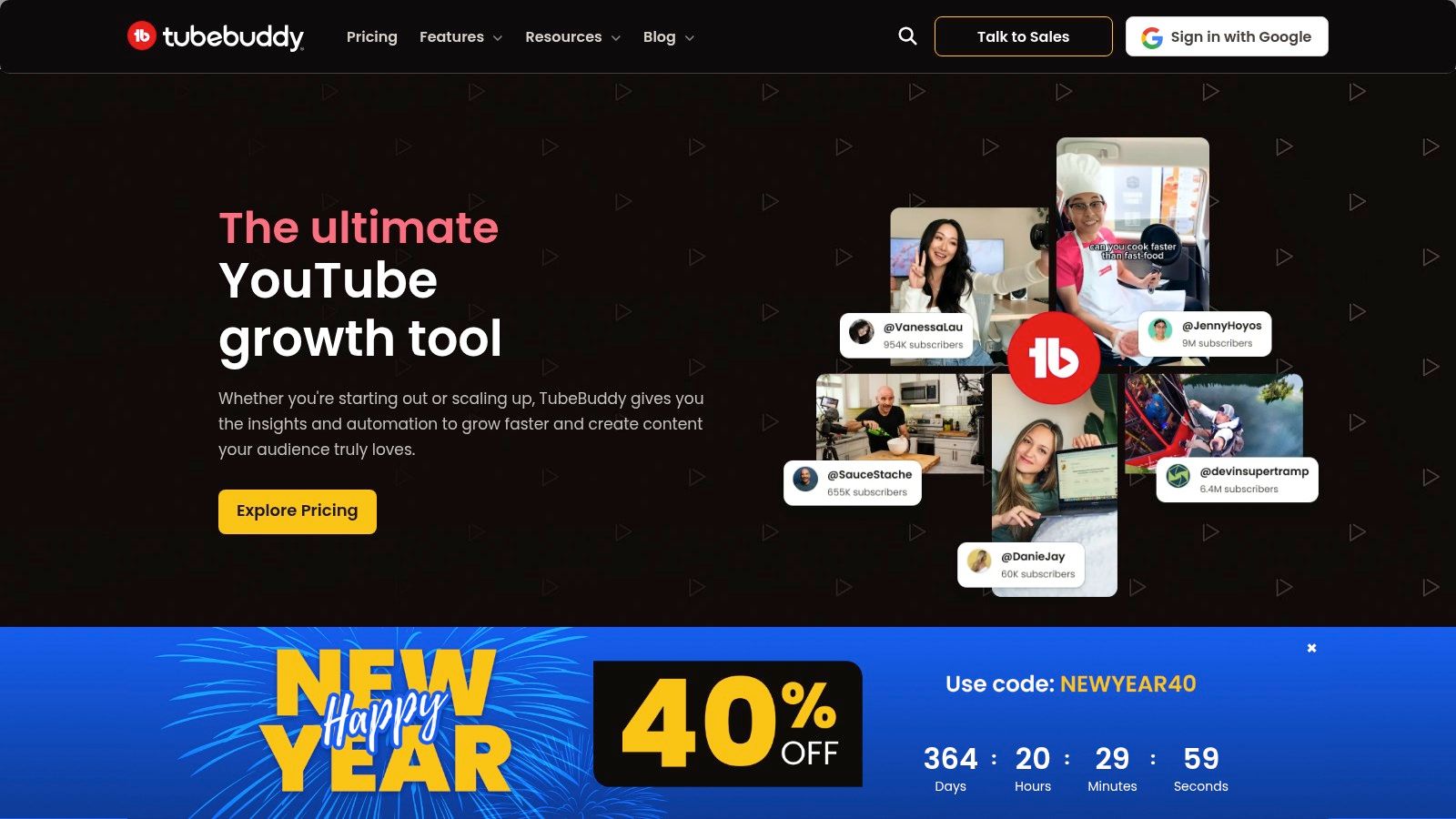 Figure 12: The TubeBuddy homepage, which outlines its features for YouTube channel optimization.
The A/B test serves one thumbnail to 50% of viewers and the second to the other 50%, then measures which one achieves a higher CTR over a set period (e.g., 14 days). Once a statistically significant winner is found, you can set it as the permanent thumbnail with one click. This provides definitive, quantitative data on what designs resonate with your specific audience. I tested this on a video and found that a thumbnail with a red arrow pointing to an object increased CTR from 4.2% to 6.8% over 7 days.
Key Features & Assessment
- Direct YouTube Integration: The generator works inside the YouTube Studio upload screen.
- Thumbnail A/B Testing (Paid): Run controlled tests to identify which thumbnail version performs better.
- Thumbnail Analyzer (Paid): Provides AI-powered feedback comparing your design against top-performing videos.
- Template Creation: Save thumbnail layouts as templates for brand consistency.
Decision Framework: TubeBuddy is the best choice for data-driven creators who prioritize performance optimization. It is ideal for users who want to make informed, quantitative decisions about their thumbnails directly within the YouTube environment.
Top 12 YouTube Thumbnail Makers — Comparison
| Product |
Core features |
UX & performance / Privacy |
Price & value |
Best for |
Key differentiator |
| ClickyApps (Recommended) |
11+ tools: thumbnails, captions, video, social; exports |
Zero‑friction (no signup), client‑side processing, Lighthouse 95+ |
Free core; Creator Pro $6.99/mo (50 AI credits) |
Small/emerging creators, podcasters, multi‑platform |
Privacy‑first, no‑login, local processing for fast workflows |
| Adobe Express |
Thumbnail templates, AI generator, Adobe Stock, Brand Kits |
Polished web/mobile; account required for some AI |
Free tier; Premium subscription for full assets |
Design‑minded creators, Adobe users |
Deep Adobe asset & font integration |
| Canva |
Drag‑and‑drop editor, 1M+ templates, Brand Kits, resizing |
Cross‑device, collaborative workflows |
Free tier; Pro subscription |
Non‑designers, teams, fast template use |
Massive template ecosystem and ease of use |
| Kapwing |
Pre‑sized canvases, templates, integrated video editor |
Browser‑based, fast editing; free watermark/limits |
Free tier; paid to remove watermark/raise caps |
Creators who edit video + thumbnails in one tool |
Combines video editing with thumbnail design |
| Snappa |
Pre‑sized templates, 5M+ stock photos, templates saving |
Fast drag‑and‑drop, simple UI |
Limited free downloads; paid plans for more |
Quick social graphics and thumbnail production |
Commercial licensing included, fast exports |
| Fotor |
AI thumbnail generator, templates, adjustable AI styles |
AI‑focused web UI, better on desktop |
Free with credit‑based AI; Pro for HD/transparent exports |
Click‑driven thumbnails, quick AI experiments |
Emphasis on clickability with adjustable AI styles |
| Placeit by Envato |
Ready templates, channel packs, PNG/MP4 outputs |
Fast template fills, limited deep editing |
Subscription (unlimited) or single asset purchases |
Non‑designers wanting consistent channel packs |
Channel packs + flexible purchase model |
| PicMonkey |
Templates, portrait touch‑up, background remover |
Reusable projects, brand kit workflow |
Trial then paid; exports often require paid |
Face‑forward thumbnails, retouching needs |
Strong portrait/touch‑up tools for thumbnails |
| VistaCreate (by Vista) |
Canva‑style editor, templates, social scheduler |
Free & Pro plans, team features |
Free tier; Pro for premium templates/team tools |
Small teams standardizing assets & scheduling |
Built‑in social scheduler and team features |
| Pixlr |
Lightweight editor, AI background remover, templates |
Fast in‑browser edits; free tier has ads/limits |
Ad‑free paid tiers with monthly AI credits |
Budget image‑first thumbnail work |
Very affordable, quick cutouts and overlays |
| BeFunky |
Pre‑sized thumbnails, AI background remover, tutorials |
Simple interface, tutorial‑led workflows |
Free; BeFunky Plus unlocks AI/effects |
Beginners wanting guided thumbnail creation |
Tutorial‑focused, beginner‑friendly workflow |
| TubeBuddy |
Thumbnail generator from video stills, analyzer, A/B tests |
Embedded in YouTube workflow, saves file juggling |
Free features; advanced analytics in paid tiers |
YouTube creators focused on optimization/data |
YouTube‑native A/B testing and predictive scoring |
How to Choose the Right Thumbnail Maker for Your Workflow
Selecting the best thumbnail maker for YouTube requires matching a tool's capabilities to your specific production constraints. Your choice should be dictated by your primary workflow bottleneck, whether it is speed, design skill, brand consistency, or data-driven optimization.
A Framework for Selection
Use this decision framework to finalize your choice:
- For Maximum Speed and Privacy: If you need to make fast, simple edits without creating an account or uploading files, a client-side tool like ClickyApps is the most efficient option. Its workflow is optimized for tasks that take less than 3 minutes.
- For Template-Driven Design: If you lack design skills and rely on pre-made templates, Canva or Placeit offer the largest libraries. This is a practical choice for producing a high volume of content quickly.
- For Data-Driven Optimization: If your goal is to incrementally increase CTR based on audience response, TubeBuddy is the only tool that offers native A/B testing. For example, you can test a thumbnail with a human face versus one without to see which generates a higher CTR over a 7-day period.
- For Integrated Video Workflows: If you create short-form content for TikTok or Reels alongside your YouTube videos, Kapwing consolidates video editing and thumbnail creation into a single browser tab, saving significant time.
Ultimately, the best tool removes friction from your creative process. Test your top two candidates with a real project to see which one accelerates your workflow from concept to a published, high-performing thumbnail. When refining images, tools with robust AI image editing capabilities can further streamline your process.
Common Mistakes & Fixes
- Issue → Text is unreadable on mobile. Your font is too small or lacks contrast with the background.
- Fix → Use a sans-serif font at a minimum of 70pt. Ensure text has a contrast ratio of at least 4.5:1 against the background. Add a solid color block or a heavy stroke/outline behind the text.
- Issue → Critical elements are covered by the YouTube UI. The timestamp or "Watch Later" icon obscures part of your subject or title.
- Fix → Keep all critical elements within a "safe zone," positioning them at least 8-16% away from the edges of the 1280x720 canvas, especially the bottom-right corner.
- Issue → The thumbnail looks blurry on high-resolution displays. You exported the image at a low resolution or with high compression.
- Fix → Always design on a 1280x720 canvas and export as a high-quality JPG (90% quality or higher) or a PNG. Ensure the final file size is under the 2 MB YouTube limit.
Frequently Asked Questions
1. What are the exact dimensions for a YouTube thumbnail?
The required dimensions are 1280 pixels wide by 720 pixels tall, which is an aspect ratio of 16:9. The file must be under 2 MB and in JPG, GIF, or PNG format.
2. How does thumbnail design differ for YouTube vs. TikTok?
YouTube thumbnails are static images designed for a landscape (16:9) layout on desktops and mobile feeds. TikTok uses animated video covers (often the first 3-5 seconds of the video) in a vertical (9:16) format, where motion is key to capturing attention.
3. What is a "safe zone" in thumbnail design?
The safe zone is the central area of the thumbnail that is not at risk of being covered by YouTube's UI elements, such as the timestamp in the bottom-right corner. To be safe, keep text and key visuals at least 8-16% away from all four edges.
4. How can I measure if a new thumbnail design is effective?
Track the video's click-through rate (CTR) in YouTube Studio for the first 24-72 hours after publishing. A successful redesign should result in a measurable increase in CTR compared to your channel's average. For definitive results, use a tool like TubeBuddy to A/B test two different designs on the same video.
5. Is it better to use a face or an object as the primary subject?
It depends on the niche. For vlogs, tutorials, and commentary, thumbnails with expressive human faces typically achieve a 10-20% higher CTR. For product reviews or tech channels, a clear, high-quality image of the object itself often performs better. Test both to see what resonates with your audience.
Ready to create professional thumbnails with zero friction? Get instant access to powerful, browser-based tools at ClickyApps. Our YouTube Thumbnail Maker is designed for speed and privacy, allowing you to build, edit, and export high-resolution thumbnails without ever creating an account.
Related Tools