
Editing SRT files improves subtitle accuracy and sync, making your videos accessible to a wider audience and boosting engagement on platforms like YouTube and Instagram. For content creators, mastering this skill is essential for delivering a professional experience, as correctly formatted subtitles directly impact viewer retention and SEO discoverability, especially for the 85% of social media videos watched on mute. This guide provides the exact workflows to fix common SRT issues in under 90 seconds.
Table of Contents
Explore More Guides in the Captions Hub →
Quick Start: The 90-Second SRT Fix
For minor text or timestamp corrections, a plain text editor is the fastest method. This workflow takes less than 90 seconds from start to finish.
- Open with a Plain Text Editor: Use Notepad (Windows) or TextEdit (Mac). Do not use rich text editors like Word or Google Docs, which add formatting that breaks SRT files.
- Locate the Error: Find the specific subtitle block. Each block has a sequence number (1, 2, 3), a timestamp (
HH:MM:SS,mmm --> HH:MM:SS,mmm), and the subtitle text. - Correct the Text or Timestamp: Edit the typo or adjust the timestamp numbers. The timestamp format is rigid; ensure the milliseconds separator is a comma (
,). - Save with UTF-8 Encoding: Go to File > Save As. In the save dialog, find the "Encoding" option and select UTF-8. This prevents character display issues.
- Test the File: Open your video in VLC media player and drag the saved SRT file into the player window to verify the fix.
Choosing Your SRT Editing Workflow
Selecting the right tool for the job prevents wasted time. The type of edit you need to make—a simple text correction versus a complete timing overhaul—determines your workflow.
The Subtitle Editor Software Market reflects this need for precision, valued at $935.9 million in 2024 and projected to exceed $2.5 billion by 2035. This growth is driven by the demand for accurately subtitled video content. You can find more data on this market trend.
Use this decision framework to select the appropriate tool for your task.
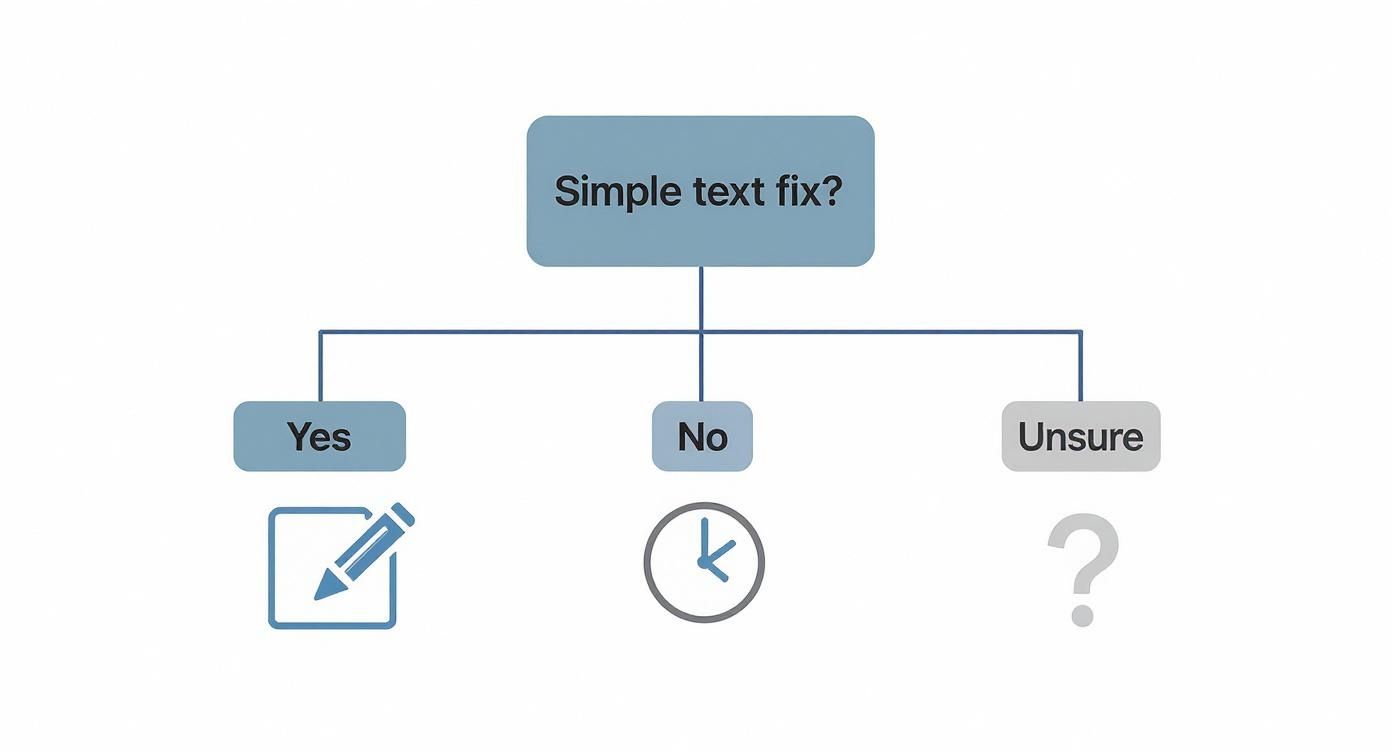
Figure 1: A decision flowchart helping you choose the right SRT editing tool based on whether the issue is text-related or timing-related.
Decision Framework: Plain Text vs. Dedicated Software
| Method | Use When | Pros | Cons |
|---|---|---|---|
| Plain Text Editor | Correcting typos, minor grammar edits, find-and-replace for specific words. | No installation needed; fastest method for simple text changes. | No video preview, high risk of breaking timestamp format, no sync tools. |
| Dedicated Software | Fixing sync issues, shifting all timestamps, converting framerates, professional workflows. | Live video preview, bulk editing tools, built-in error checking. | Requires software installation (Subtitle Edit, Aegisub) and has a learning curve. |
| Online Editor | Quick edits without software installation, collaborative work, simple text and timing adjustments. | Accessible from any browser, includes a video player, user-friendly interface. | Requires an internet connection, may have file size limits or fewer advanced features. |
For quick edits without downloading software, a browser-based tool like our SRT Editor provides a reliable alternative.
How to Adjust Subtitle Timing and Synchronization
Incorrect timing makes your content feel unprofessional. Subtitles that appear too early or late break viewer immersion. Mastering synchronization is a key technical skill.
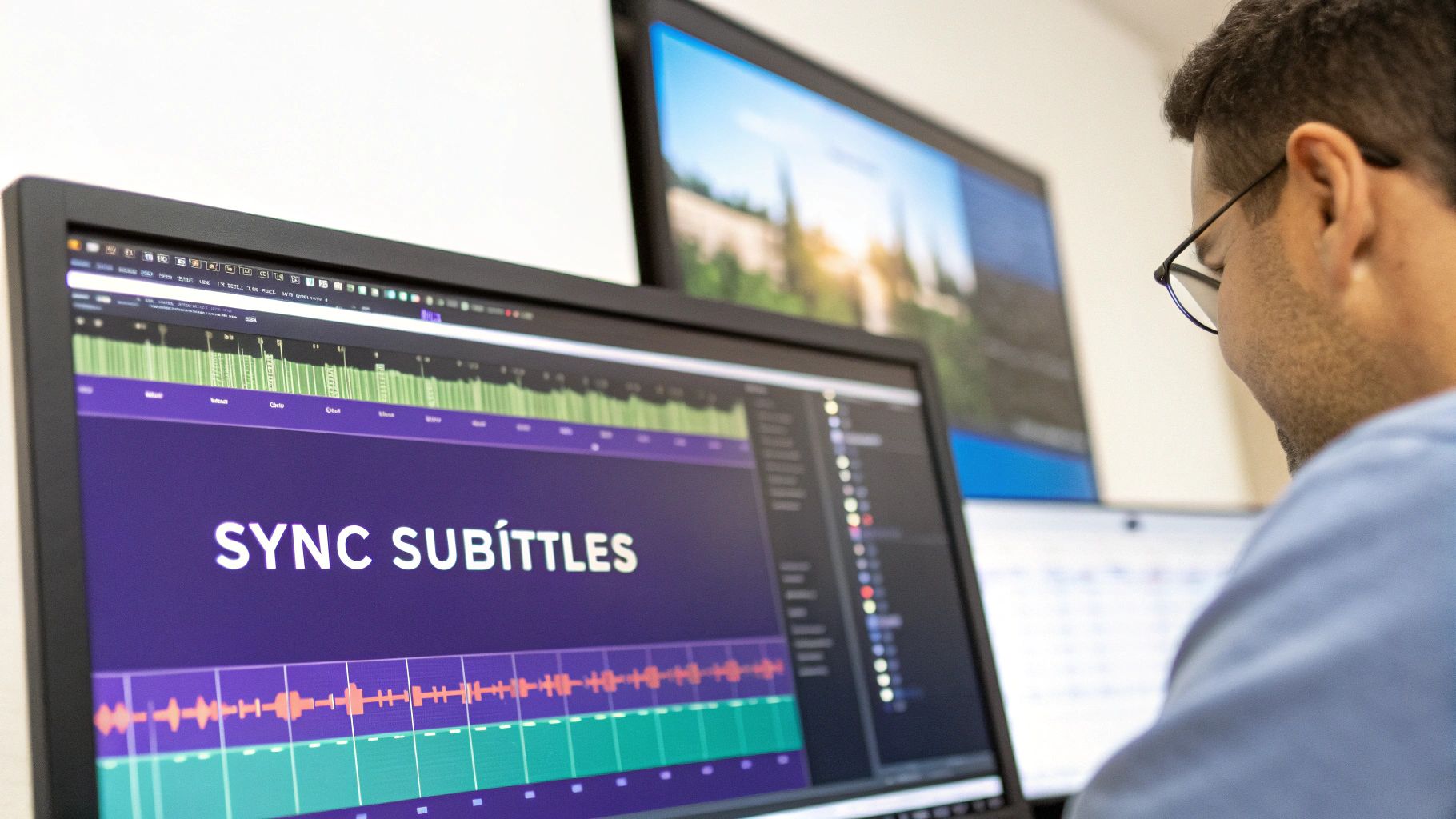
Figure 2: A content creator uses dedicated software to synchronize subtitle cues with the video timeline, ensuring perfect timing.
Shifting All Timestamps at Once
When all subtitles are off by a consistent amount (e.g., 1.5 seconds late), use a bulk timestamp shift instead of editing each cue individually.
- Positive Shift:
+1.500smakes subtitles appear later. Use this when captions appear before the speaker talks. - Negative Shift:
-0.800smakes subtitles appear earlier. Use this when captions lag behind the audio.
In Subtitle Edit, this function is Synchronization > Adjust all times. Entering +00:00:01,500 in the dialog box shifts every cue forward by 1.5 seconds, fixing the entire file in under 10 seconds. Shifting cues can sometimes create overlaps; learn how to fix overlapping SRT cues to resolve these conflicts.
Fixing Framerate Mismatches
If subtitles start in sync but drift progressively out of time, it is likely a framerate mismatch. This occurs when an SRT file created for a 23.976 fps video is used on a 29.97 fps video.
Real-World Example: I once fixed subtitles for a 45-minute video where the captions were perfect for the first 5 minutes but off by nearly 3 seconds at the end. The issue was a video conversion from 24 fps to 25 fps without adjusting the SRT file.
To fix this, convert the SRT file's framerate to match the video.
- Identify Framerates: Check your video's framerate in VLC under
Tools > Codec Information. Determine the original framerate of the SRT file. - Use a Conversion Tool: In Subtitle Edit, navigate to
Synchronization > Change frame rate. - Enter Old and New Values: Input the "From frame rate" (e.g.,
23.976) and "To frame rate" (e.g.,29.97). The software recalculates all timestamps automatically.
Formatting SRTs for YouTube, TikTok, and Instagram
Each platform handles subtitles differently. YouTube uses soft subtitles (separate, toggleable files), while TikTok and Instagram require hard subtitles (burned directly into the video). Incorrect formatting can cause platform UI to obscure your text.

Figure 3: A video playing on a smartphone, where subtitles must be positioned carefully to avoid being covered by the platform's user interface.
Optimizing for YouTube
YouTube directly supports SRT files, using them for accessibility and SEO. The goal is to upload a clean, error-free file.
- Open YouTube Studio and select your video.
- Navigate to the Subtitles tab.
- Click Add Language and choose the correct language.
- Select Add under the Subtitles column.
- Choose Upload file, select With timing, and upload your
.srtfile.
Always review the subtitles within YouTube's editor after uploading to confirm sync. The entire process takes less than 60 seconds with a prepared file. For more details on structure, see our guide on SRT format rules and examples.
Burning In Subtitles for TikTok and Instagram
These platforms do not support SRT uploads. You must burn the subtitles into the video file using a video editor. The primary challenge is avoiding UI overlap.
For vertical videos, position subtitles within a 90% vertical safe area—at least 5% from the top and bottom edges.
Workflow in DaVinci Resolve:
- Import your video and SRT file (
File > Import > Subtitle...). - The subtitles appear as a new track on the timeline.
- Select the subtitle track and open the Inspector panel.
- Adjust font, size, and position. Nudge the Y-axis value to move the text into the vertical safe zone. For a 1920px tall video, keep text out of the top and bottom 96 pixels.
- Export the final video with the burned-in subtitles.
This workflow provides full creative control and ensures readability.
Common Mistakes & Fixes
One formatting error can invalidate an entire SRT file. Most issues stem from encoding, timestamp syntax, or sequence numbering.
Issue → Subtitles display garbled characters (’ instead of ').
Fix → This is a text encoding error. The file must be saved with UTF-8 encoding. Open the SRT file in an editor like Notepad++ or Visual Studio Code, go to File > Save As, and select UTF-8 from the "Encoding" dropdown menu.
Issue → Subtitle lines are too long and get cut off on mobile screens.
Fix → Limit lines to a maximum of 42 characters and two lines per cue. Manually break longer lines of dialogue into two separate, sequential cues with adjusted timestamps.
Issue → The video player gives an "invalid format" or "parsing error."
Fix → This is usually a timestamp syntax error. The format must be HH:MM:SS,mmm with a comma, not a period, before milliseconds. Use find-and-replace (Ctrl+H) to replace all periods with commas in timestamp lines. The separator must also be --> (with spaces).
Issue → Subtitles appear out of order or stop displaying partway through.
Fix → The sequence numbers are incorrect (e.g., duplicated or skipped). Use a dedicated tool like Subtitle Edit to automatically re-number the entire sequence via its Tools or Synchronization menu.
Frequently Asked Questions
Can I change the font and color in an SRT file?
No. The .srt format only supports plain text. It cannot store styling information like font, color, or size. To style subtitles, you must either burn them into the video using an editor like DaVinci Resolve or use an advanced format like .ass (Advanced SubStation Alpha), which is not widely supported on social media platforms.
How do I split one long subtitle into two?
To split a subtitle cue (e.g., number 25) that is too long:
- Locate cue 25 and determine the split point in the text.
- Adjust the end timestamp of cue 25 to the moment of the split.
- Create a new cue (26) directly below it. Paste the second half of the text into this new cue.
- Set the start time of the new cue 26 to match the new end time of cue 25.
- Manually re-number all subsequent cues (the old 26 becomes 27, 27 becomes 28, etc.).
My timestamps are all off by a few seconds. What's the fastest fix?
Use the bulk timestamp shift feature in a dedicated editor like Subtitle Edit or Aegisub. In Subtitle Edit, go to Synchronization > Adjust all times and enter a precise offset (e.g., +2.150s to delay all cues or -1.500s to advance them). This fixes the entire file in under 10 seconds.
Why does my SRT file show weird symbols?
This is a text encoding issue. Your file was saved in a format like ANSI instead of UTF-8. UTF-8 is required to correctly display accents, symbols, and non-Latin characters. Open the file in Notepad++ or VS Code, go to File > Save As, and select UTF-8 from the "Encoding" dropdown to fix it.
What is the character limit for subtitles?
For maximum readability across all devices, a professional standard is 32-42 characters per line, with a maximum of two lines per subtitle cue. This prevents text from becoming too wide for mobile screens and ensures viewers can read the text comfortably before it disappears.
How do I add subtitles to a video without an SRT file?
If you do not have an SRT file, you can create one from scratch. Use a subtitle editor like Subtitle Edit to load your video, then listen to the audio and type out the dialogue. The software allows you to set the start and end timestamps for each line as you go, creating a new, perfectly synced SRT file.
Can I convert other subtitle formats to SRT?
Yes. Tools like Subtitle Edit can convert dozens of subtitle formats (like .vtt, .ass, .sub) into the .srt format. Simply open the file in the editor and use the File > Save As function to select .srt (SubRip) as the output format. The software will handle the conversion of timestamps and text.
Related Tools from ClickyApps:
- SRT Editor: Make quick text and timing adjustments online.
- SRT Timestamp Shifter: Bulk-adjust all timestamps with a single command.
- VTT to SRT Converter: Convert WebVTT files for broader compatibility.
- Caption Merger: Combine multiple subtitle files into one.
- Subtitle Framerate Converter: Fix subtitle drift by matching framerates.
- SRT Cleaner: Automatically fix common formatting errors.