This guide helps working content creators produce professional video for YouTube, TikTok, and Instagram without software costs. By focusing on practical features and platform-specific workflows, you can select the right tool to reduce editing time by up to 40%. This analysis is based on hands-on testing of each application's core feature set, export quality, and beginner-friendliness.
Table of Contents
Explore more resources in our Content Creation hub.
Quick Start: Your First Edit in 5 Steps
- Select Software: Choose a tool from this list based on your operating system (Windows/macOS) and primary content platform (YouTube/TikTok).
- Import Footage: Drag and drop your video files from your computer directly into the editor's "Media Pool" or "Project Bin".
- Create Timeline: Drag your primary clip from the Media Pool onto the timeline. This sets the project's resolution (e.g., 1920x1080) and frame rate (e.g., 30 FPS).
- Perform Cuts: Use the "Blade" or "Split" tool (often mapped to the 'B' or 'S' key) to cut out unwanted sections. Select the unwanted clip and press "Delete".
- Export Video: Go to "File" > "Export" or "Render". Select a preset like "YouTube 1080p" and export the final
.mp4 file.
1. Blackmagic Design — DaVinci Resolve
DaVinci Resolve is the industry standard for color grading, and its free version offers a complete post-production suite. It integrates editing, color correction, visual effects (VFX), and audio post-production into a single application, eliminating the need to switch programs. This unified workflow streamlines production for creators aiming to build professional skills.
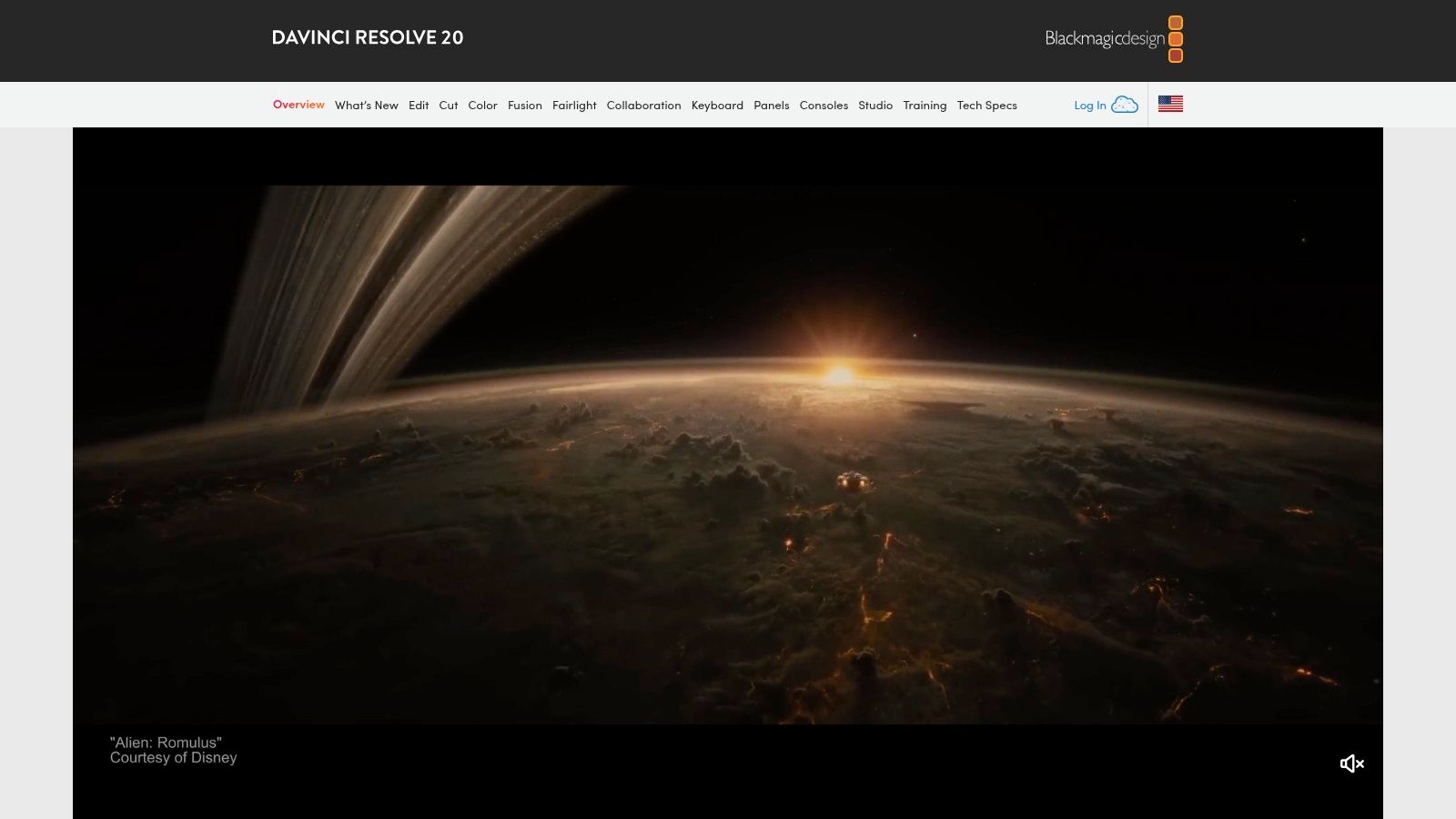
While the node-based system for color and VFX presents a steep learning curve, it provides unmatched control. The free edition handles resolutions up to Ultra HD (3840x2160) at 60 frames per second and includes more features than most paid editors. For example, I used its "Fairlight" page to normalize my YouTube tutorial audio to -14 LUFS, a task that requires separate software in other workflows.
Key Details & Use Cases
- Best For: Serious YouTube creators and aspiring filmmakers needing professional-grade color correction.
- Platform Availability: Windows, macOS, Linux.
- Platform-Specific Guidance: For YouTube, use the "Deliver" page with the
H.264 Master preset, set quality to Restrict to 80,000 Kb/s for optimal upload quality. For TikTok, use a custom 1080x1920 timeline.
- Access: Download the free version from the Blackmagic Design website after registration. There are no watermarks.
Visit DaVinci Resolve
2. Microsoft Clipchamp
Microsoft Clipchamp is a browser-based video editor designed for quick edits and social media content. Its intuitive drag-and-drop interface and templates allow first-time users to produce polished videos with minimal effort. It is ideal for tasks like trimming clips, adding text, and incorporating stock media for platforms like TikTok and Instagram Reels.
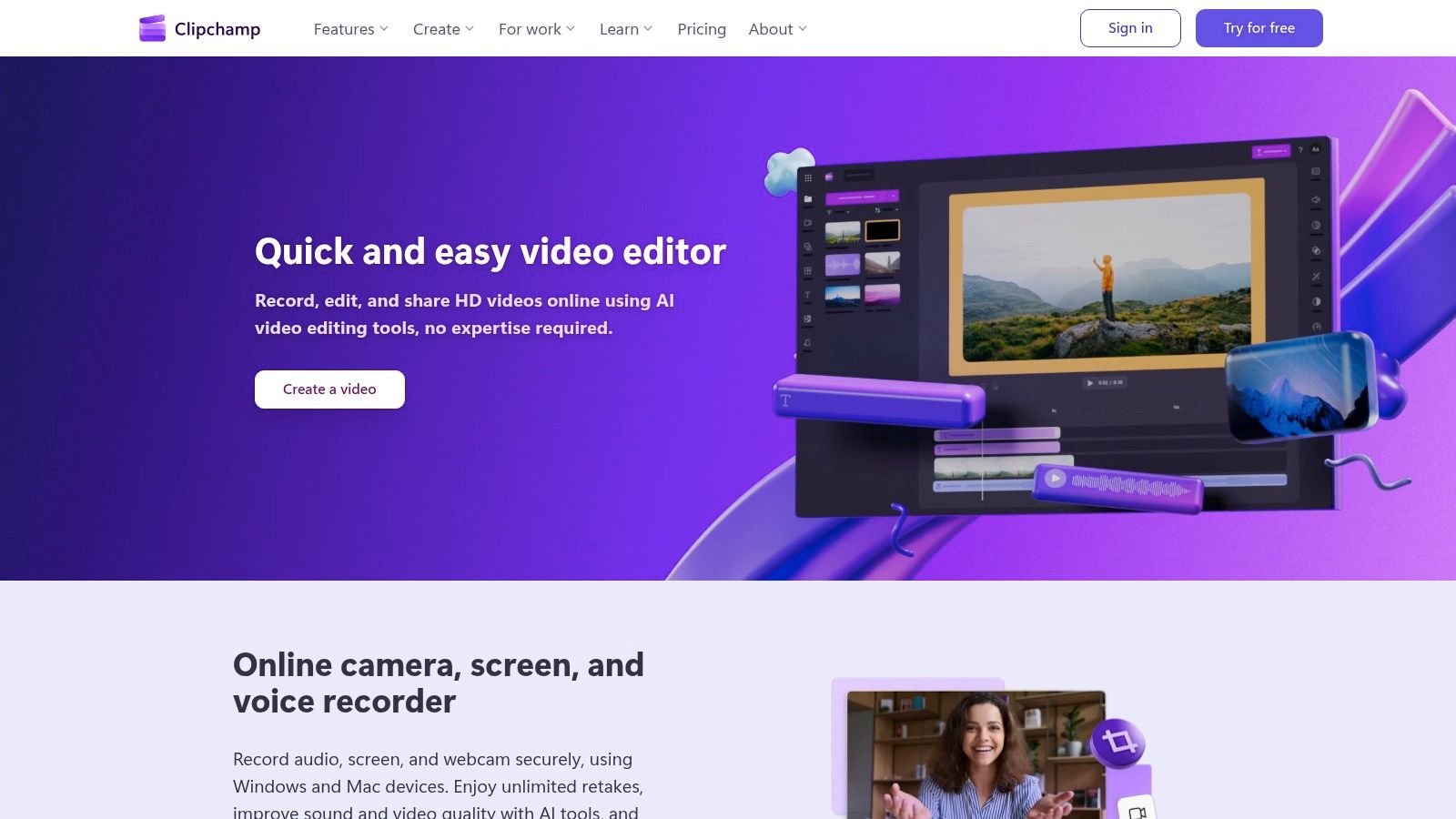
Clipchamp's strength is its accessibility. It runs in-browser and as a native Windows app, integrating with OneDrive. While not a replacement for professional editors, its free tier offers watermark-free exports at 1080p resolution. In a test, I created and exported a 60-second Instagram Reel with animated text and stock B-roll in under 15 minutes.
Key Details & Use Cases
- Best For: Social media managers and Windows users needing simple videos quickly.
- Platform Availability: Web browser (Chrome, Edge), Windows.
- Platform-Specific Guidance: Use the built-in
1:1, 9:16, or 16:9 aspect ratio presets to instantly format your video for Instagram posts, Reels, or YouTube.
- Access: Sign in with a Microsoft or Google account. Core editing is free; some stock assets require a paid subscription.
Visit Microsoft Clipchamp
3. Apple iMovie
For creators in the Apple ecosystem, iMovie is the standard starting point. It delivers a polished, intuitive experience that prioritizes speed and simplicity, with seamless integration between Mac, iPhone, and iPad. While it lacks deep, granular control, its strength is producing high-quality videos with a minimal learning curve.
The software is optimized for Apple hardware, ensuring stable performance with 4K footage. Features like Magic Movie and Storyboards act as creative guardrails, automatically assembling clips or providing templates to guide the editing process. This approach removes technical intimidation, allowing creators to focus on storytelling.
Key Details & Use Cases
- Best For: Apple users and beginners needing to produce polished videos quickly.
- Platform Availability: macOS, iOS, iPadOS.
- Platform-Specific Guidance: For YouTube, export using the
Best (ProRes) quality setting and then compress the .mov file with HandBrake for a smaller file size without significant quality loss.
- Access: Pre-installed for free on all new Apple devices and available from the App Store. There are no watermarks or premium tiers.
Visit Apple iMovie
4. Shotcut
Shotcut is an open-source, cross-platform video editor offering a balance between features and ease of use. It provides native timeline editing, meaning you can work with various video formats without conversion. This, combined with 4K resolution support and a commitment to being completely free, makes it a top contender for creators who value privacy and performance.
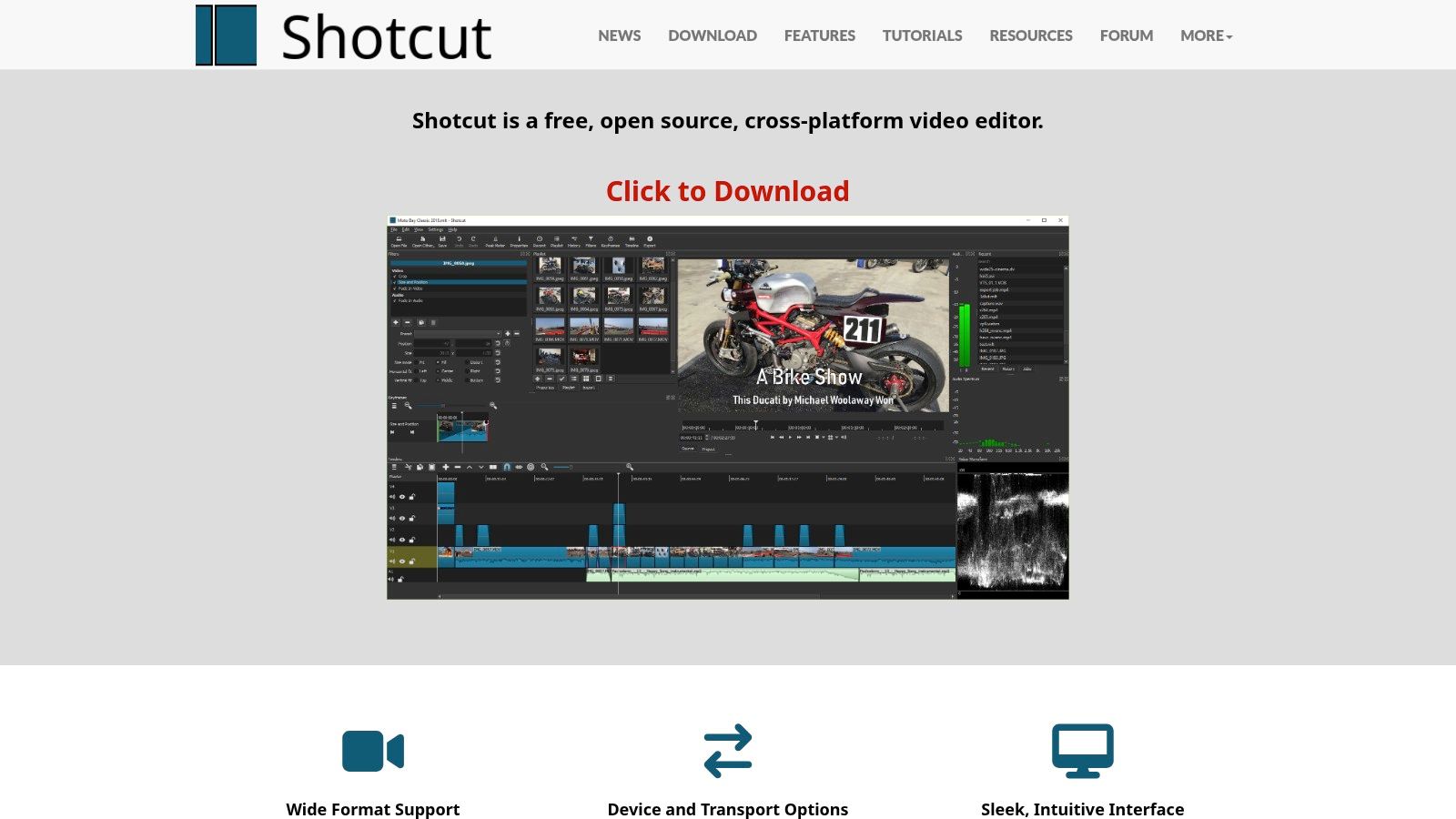
Unlike tools that require cloud sign-ins, Shotcut is fully functional offline. Its user interface is utilitarian, focusing on function over form, with a modular design you can arrange to suit your workflow. Its wide format support via FFmpeg is a key advantage. For example, I was able to directly edit a .MKV screen recording file that other editors like iMovie rejected.
Key Details & Use Cases
- Best For: Beginners and intermediate editors on any OS needing a reliable, offline-first editor.
- Platform Availability: Windows, macOS, Linux.
- Platform-Specific Guidance: Use the
Properties panel to set the Video Mode to HD 1080p 30fps before importing media to ensure a consistent project format.
- Access: Shotcut is available for free, direct download from its official website. The software is genuinely free with no watermarks or trials.
Visit Shotcut
5. Kdenlive
Kdenlive is a mature, open-source video editor from the KDE community that provides a robust, multi-track editing experience. It offers advanced features like proxy editing for smooth handling of high-resolution files on lower-spec computers. This makes it a powerful and accessible choice for creators who need more than basic trimming and splicing.
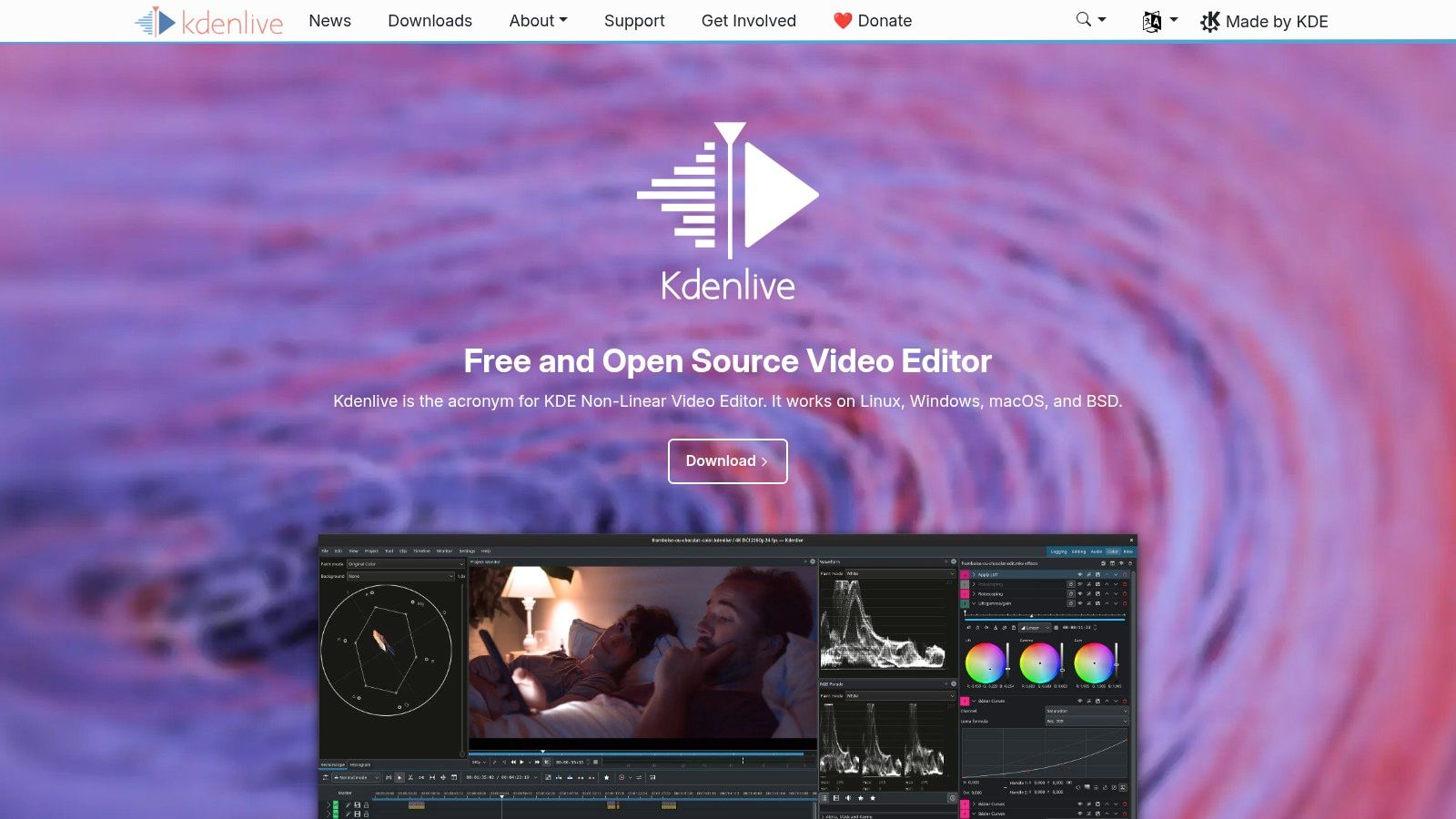
Kdenlive's strength lies in its deep customization and active development. While its interface is less polished than commercial options, it provides extensive control over effects, transitions, and compositing. Though occasional stability quirks can arise, its powerful, no-cost feature set makes it an excellent tool for creators willing to navigate a slight learning curve for greater creative freedom.
Key Details & Use Cases
- Best For: Linux users and YouTubers who want a feature-rich, customizable editor.
- Platform Availability: Linux, Windows, macOS.
- Platform-Specific Guidance: Enable proxy editing by going to
Project > Project Settings and checking Enable Proxy Clips. This creates lower-resolution copies (e.g., 540p) of your 4K source files for smoother timeline performance.
- Access: Kdenlive is completely free and open-source. Download it directly from its website with no registration or watermarks.
Visit Kdenlive
6. OpenShot
OpenShot is a simple open-source editor ideal for beginners overwhelmed by complex interfaces. It balances user-friendliness and functionality, providing an easy-to-understand drag-and-drop timeline, essential effects, and titling tools. The software helps new creators produce their first polished videos quickly without a steep learning curve.
Its cross-platform nature means you can maintain the same workflow on Windows, macOS, or Linux. While it lacks the advanced features of professional non-linear editors (NLEs), its straightforward approach is perfect for fundamental tasks like trimming clips, adding background music, and exporting in common formats. Recent builds have improved performance, making it a reliable starting point.
Key Details & Use Cases
- Best For: Absolute beginners and students needing a simple tool for basic edits.
- Platform Availability: Windows, macOS, Linux.
- Platform-Specific Guidance: For animated titles, use the
Title > Animated Title menu. This requires Blender to be installed on your system for rendering the 3D text animations.
- Access: OpenShot is completely free and open-source. Download it from the official website without registration; all exports are watermark-free.
Visit OpenShot
7. Lightworks Free
With a legacy in professional film editing, Lightworks Free serves as a powerful entry point into non-linear editing. It provides a classic, timeline-based workflow that is robust enough for complex projects while performing exceptionally well on modest hardware. This makes it a prime choice for creators without high-end editing rigs.
Lightworks Free retains a professional-grade toolset for trimming and audio mixing. While the free tier has a notable export limitation of 720p (1280x720), this resolution is adequate for many web projects, especially for creators just starting on YouTube. I tested it on a 5-year-old laptop with 8GB of RAM, and it handled multi-track 1080p source footage more smoothly than several other NLEs.
Key Details & Use Cases
- Best For: Beginners using older or less powerful computers who prioritize stability.
- Platform Availability: Windows, macOS, Linux.
- Platform-Specific Guidance: The 720p export limit is sufficient for initial YouTube uploads. As your channel grows and you require 1080p or 4K, Lightworks offers a clear upgrade path to paid tiers.
- Access: The free version requires sign-up on the LWKS website. After registration, exports are capped at 720p resolution but are watermark-free.
Visit Lightworks Free
8. HitFilm (FXhome)
HitFilm balances traditional non-linear editing (NLE) and powerful visual effects (VFX), making it a standout choice for creators wanting to add cinematic flair to their projects. It integrates editing and effects into a single environment, allowing you to create simple cuts or intricate motion graphics in one application.
The free tier of HitFilm is capable, offering over 127 visual effects, unlimited HD exports, and essential editing tools without a watermark. Its layer-based compositing system will feel familiar to users of Adobe After Effects but is more approachable for newcomers. This scalability makes it a strong contender for beginners looking to grow.
Key Details & Use Cases
- Best For: YouTube creators and anyone wanting an all-in-one editor and VFX tool.
- Platform Availability: Windows, macOS.
- Platform-Specific Guidance: To create a lightsaber effect, place your footage on the timeline, add a new
Plane layer, use the Lightsword (2-Point Auto) effect, and keyframe the start and end points to match the prop's movement.
- Access: The free version is available from the FXhome website. The free plan is fully functional for basic to intermediate projects and does not impose a watermark.
Visit HitFilm
9. Blender (Video Sequence Editor)
Blender is a 3D creation suite with a capable non-linear video editor called the Video Sequence Editor (VSE). For creators whose projects require 3D animation, motion graphics, or complex VFX, Blender offers an unparalleled integrated workflow. You can move seamlessly between modeling, animating, and editing without leaving the application.
While the VSE provides essential functions like cuts, transitions, and audio mixing, its strength is its direct link to Blender's other modules. You can render a 3D scene directly into your video timeline as a strip. Although its 3D-centric interface presents a steep learning curve, Blender is a fantastic option for beginners interested in computer graphics.
Key Details & Use Cases
- Best For: 3D artists and VFX enthusiasts who need to integrate motion graphics into video.
- Platform Availability: Windows, macOS, Linux.
- Platform-Specific Guidance: Switch to the
Video Editing workspace to access the VSE. Add a Scene strip to your timeline to directly composite a 3D animation into your video sequence without a separate render step.
- Access: Blender is completely free and open-source, available for direct download with no watermarks or registration.
Visit Blender
10. Avidemux
Avidemux is not a full-featured NLE but a simple, efficient tool for fundamental tasks. It excels at basic cutting, filtering, and encoding, perfect for beginners who need to trim a video, apply a basic filter, or convert a file format without the complexity of a multi-track timeline. Its lightweight nature ensures it runs smoothly on older computers.

Avidemux's primary strength is its speed, particularly its "Copy" mode, which allows you to cut clips without re-encoding the entire file. This process is incredibly fast—trimming 10 seconds from a 5-minute 1080p file takes less than 5 seconds—and preserves original video quality. While it lacks advanced effects, its focused utility makes it an excellent utility tool.
Key Details & Use Cases
- Best For: Beginners needing to make simple cuts, join files, or quickly convert formats.
- Platform Availability: Windows, macOS, Linux.
- Platform-Specific Guidance: To trim a video losslessly, set both
Video Output and Audio Output to Copy. Use the A and B markers to select the portion you want to keep, then File > Save.
- Access: Avidemux is free, open-source, and available for direct download. There are no watermarks or fees.
Visit Avidemux
11. VideoProc Vlogger (Digiarty)
VideoProc Vlogger simplifies complex editing techniques for new creators. It excels at visual storytelling by offering advanced features like motion presets and customizable speed ramping, making it easy to add dynamic effects without a steep learning curve. The software is completely free, with no watermarks or feature limitations.
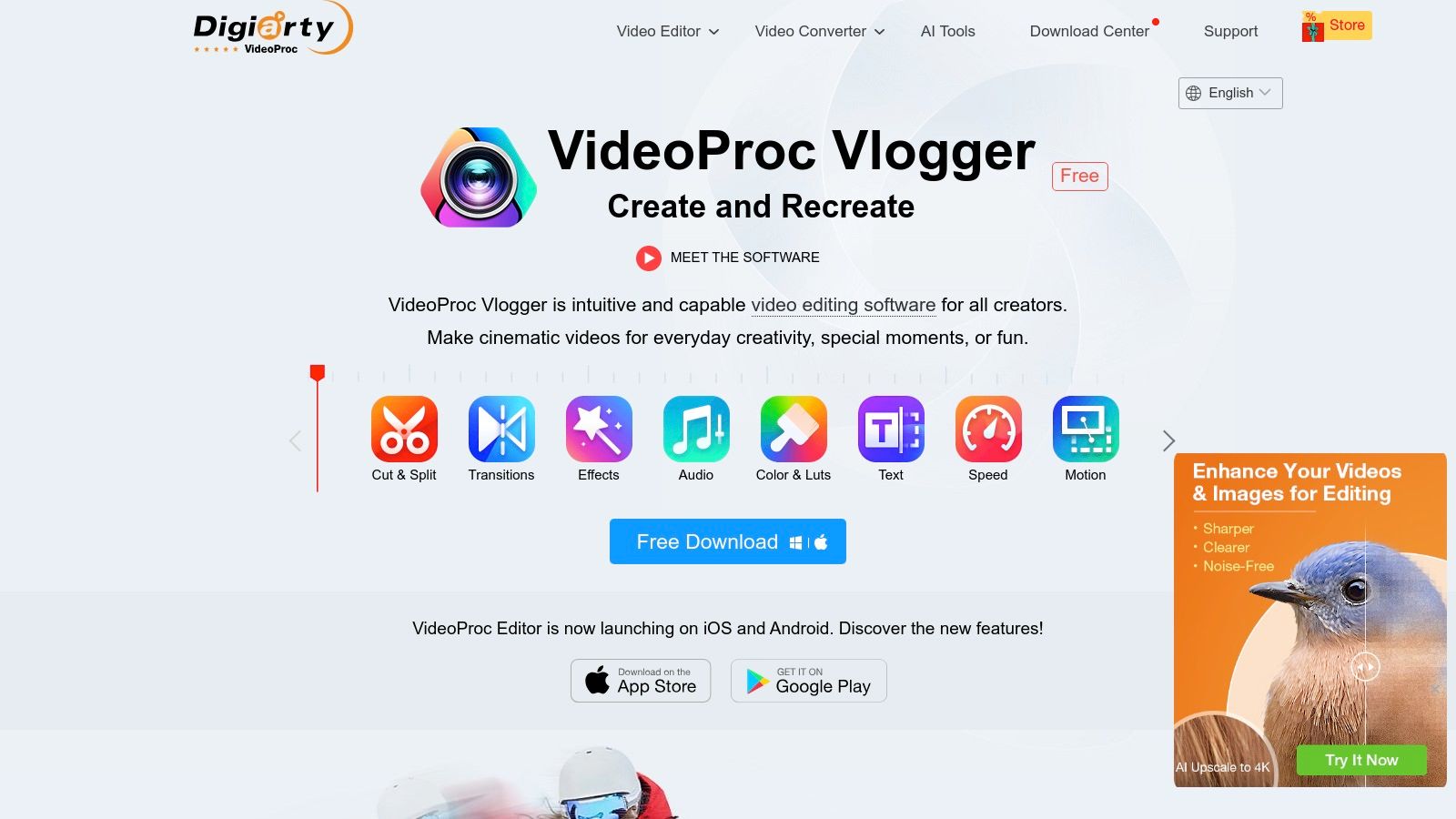
Unlike free tools that hide essential functions behind a paywall, VideoProc Vlogger provides a complete suite of creative controls. Its motion editor allows for precise manipulation of camera movements using presets. Its audio editor, including a beat analyzer, helps you sync visuals to music, a crucial skill for creating engaging content for YouTube and TikTok.
Key Details & Use Cases
- Best For: YouTubers and beginners wanting to experiment with advanced motion and speed effects.
- Platform Availability: Windows, macOS.
- Platform-Specific Guidance: Use the
Speed editor to add keyframes to the timeline and drag the Bezier curve handles up or down to create smooth, variable-speed "ramping" effects, transitioning from 0.5x to 4x speed seamlessly.
- Access: VideoProc Vlogger is a completely free download. Select the "Vlogger" product, as the company also offers paid converter software.
Visit VideoProc Vlogger
12. VN — AI Video Editor (VlogNow)
VN Video Editor (VlogNow) is a powerhouse for mobile-first content creators, delivering desktop-grade features in an intuitive smartphone app. It is designed for the fast workflow of creating Shorts, Reels, and TikToks, allowing users to produce high-quality videos on their phones. The app balances powerful tools like multi-track timelines and speed curves with a simple, touch-friendly interface.
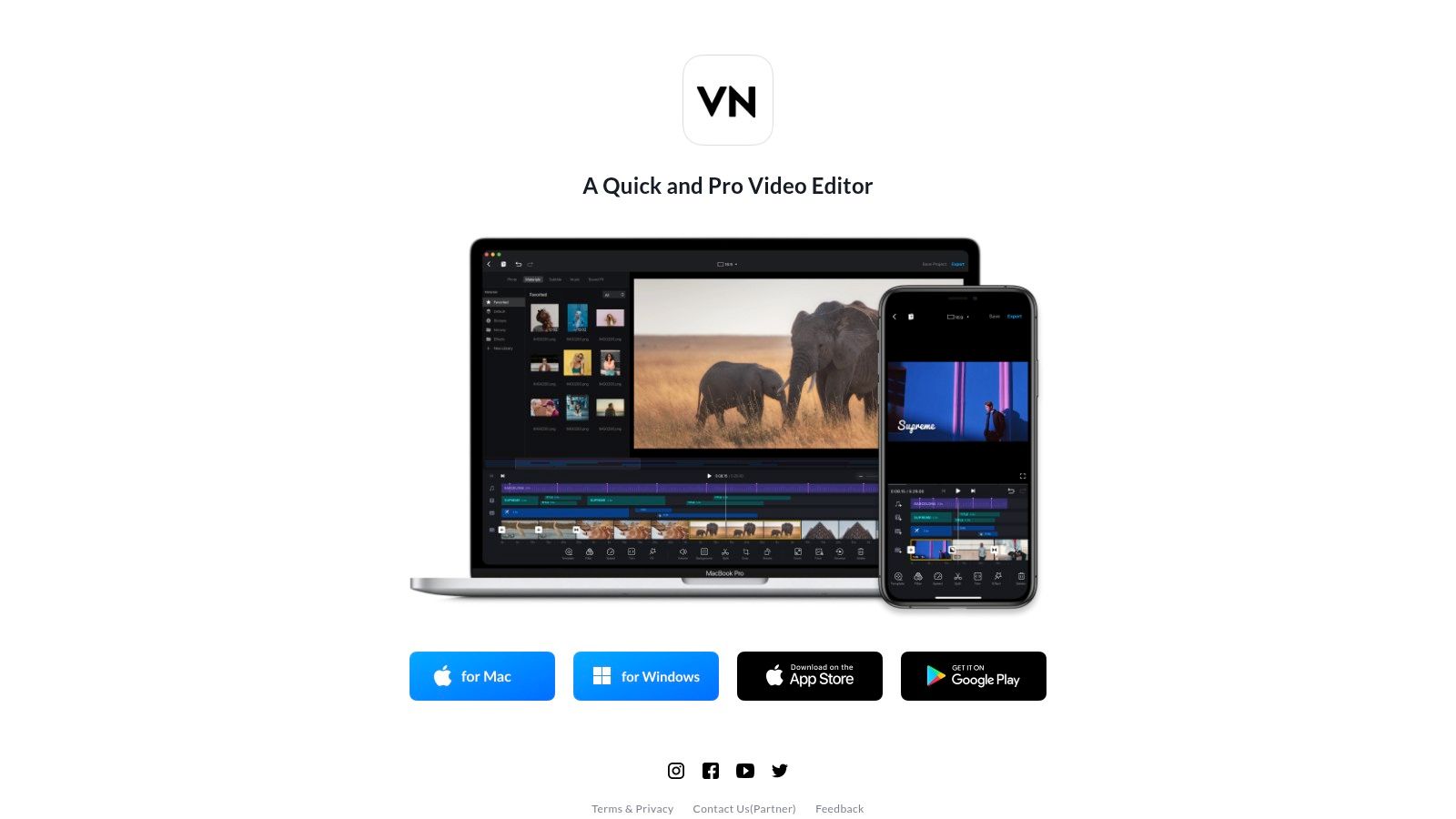
VN’s free version is exceptionally generous. It allows for watermark-free exports in up to 4K resolution at 60 frames per second, a feature typically reserved for paid software. While it offers an optional Pro subscription for advanced assets, the core tools are sufficient for most creators, establishing it as a top choice for mobile-primary workflows.
Key Details & Use Cases
- Best For: TikTok and Instagram creators and anyone needing a powerful, portable editor.
- Platform Availability: iOS, Android, macOS, Windows.
- Platform-Specific Guidance: Import custom LUTs (.cube files) to apply consistent color grades across all your clips. This is crucial for maintaining a consistent brand aesthetic on Instagram.
- Access: VN is free to download from the App Store and Google Play. The free version does not add a watermark to exported videos.
Top 12 Free Video Editors — Beginner Feature Comparison
| Product |
Core features |
Ease of use |
Privacy & offline |
Target audience |
Price & standout |
| Blackmagic Design — DaVinci Resolve |
Full NLE: Cut/Edit/Color/Fusion/Fairlight; multiuser support |
Steep learning curve; pro workflows |
Local-first editing; optional Blackmagic Cloud for collaboration |
Professional creators, colorists, studio workflows |
Free edition powerful; Studio paid upgrade; industry-standard grading |
| Microsoft Clipchamp |
Web/Windows editor with templates, AI helpers, stock library |
Very beginner-friendly; template-driven |
Requires Microsoft sign-in; cloud integrations (OneDrive, 365) |
Casual creators and Microsoft ecosystem users |
Free tier; premium assets/features behind paid plans |
| Apple iMovie |
Storyboards & Magic Movie auto-edit; 4K, filters, green screen |
Very easy; fast results for novices |
Local on Apple devices; sync via iCloud if used |
Apple users who want quick, polished edits |
Free; tight Apple integration and simple UI |
| Shotcut |
Native timeline, 4K support, cross-platform, portable builds |
Moderate; approachable balance of power |
Open-source and offline; no sign-in or data collection |
Privacy-minded and budget-conscious creators |
Free; fully offline with no account needed |
| Kdenlive |
Multitrack editing, proxy support, effects & compositing |
Moderate; customizable with depth |
Open-source offline; active community docs |
Power users wanting free customization and features |
Free; powerful open-source alternative to pro NLEs |
| OpenShot |
Templates, titles, transitions, quick exports |
Very easy; gentle learning curve |
Open-source and offline |
Beginners doing basic cuts and titles |
Free; simple, no-watermark exports |
| Lightworks Free |
Pro-style timelines, effects, audio tools; scalable tiers |
Moderate to advanced; pro-oriented |
Local editing; sign-up required for free tier |
Creators targeting professional workflows |
Free (export limited to 720p); Create/Pro paid tiers |
| HitFilm (FXhome) |
NLE plus VFX & motion graphics; built-in templates |
Beginner-friendly for edits; steeper for VFX |
Local-first editing; account/registration for licenses/updates |
Creators who want built-in VFX and motion graphics |
Free plan + Creator/Pro paid upgrades; strong VFX tools |
| Blender (Video Sequence Editor) |
VSE: cuts, effects, color tools; full integrated 3D suite |
Steep—3D-centric UI makes VSE less intuitive |
Open-source and fully local |
Creators needing 3D, VFX and editing in one app |
Free; one app for 3D, motion graphics and editing |
| Avidemux |
Fast cuts/trims, transcodes, basic filters |
Very easy and fast for simple edits |
Tiny footprint; fully offline |
Users needing ultra-quick trims and format conversions |
Free; extremely lightweight and fast |
| VideoProc Vlogger (Digiarty) |
Speed ramping, motion presets, LUTs, screen-record |
Easy; many presets for social content |
Desktop app; local editing, free no watermark |
Social creators wanting presets + screen/voiceover |
Free Vlogger (no watermark); pay attention to other paid brand products |
| VN — AI Video Editor (VlogNow) |
Multi-track mobile timeline, keyframes, LUTs, 4K export |
Easy and fast for mobile workflows |
Primarily local; optional cloud/account features may exist |
Mobile-first creators for Shorts/Reels/TikTok |
Free with optional VN Pro subscription; no watermark in free use |
Making Your Final Decision
Your choice of editor depends on your hardware, primary content platform, and technical ambition. Do not seek the single "best" editor; select the one that aligns with your specific workflow to avoid friction and accelerate production.
A Framework for Your Choice
Use this decision framework to select the right software.
- Hardware and OS: This is your primary constraint. On a low-spec laptop (e.g., dual-core CPU, 8GB RAM), lightweight editors like Shotcut or the browser-based Clipchamp are practical. On a high-spec machine (e.g., quad-core CPU, 16GB+ RAM), DaVinci Resolve is feasible. For macOS/iOS users, iMovie is the most integrated starting point.
- Primary Content Platform:
- YouTube Long-Form (8+ min): Requires timeline precision and color correction. DaVinci Resolve offers a direct path to professional workflows. Shotcut is a viable lightweight alternative.
- Short-Form (TikTok/Reels, <90 sec): Requires speed and mobile-first features. VN Video Editor is purpose-built for this format. Clipchamp is excellent for template-driven content.
- Technical Ambition: If your goal is a career in post-production, learning DaVinci Resolve from the start is a direct investment. If you just need to communicate ideas effectively, a tool like iMovie or Lightworks provides functionality without a steep learning curve.
Once you have mastered your chosen editor, a significant portion of your time is spent on post-editing tasks like generating accurate captions or creating compelling thumbnails. ClickyApps offers a suite of tools designed to automate these workflows. Use our tools at ClickyApps to handle the busywork so you can focus on your next video.
Common Mistakes & Fixes
- Issue → Inconsistent Audio Levels: Audio volume jumps between clips, making it hard for viewers to listen.
- Fix: Normalize all audio clips to a standard loudness level. For YouTube, the target is -14 LUFS (Loudness Units Full Scale). In DaVinci Resolve, use the "Fairlight" page tools. In other editors, apply a "Normalize" audio filter and set the target to -3 dB for a safe starting point.
- Issue → "Jumpy" Jump Cuts: A direct cut between two similar clips of the same subject creates a jarring visual jump.
- Fix: Use a "punch-in" technique. On the second clip, increase the scale by 10-20% to create the illusion of a camera zoom, which masks the cut. Alternatively, cover the cut with B-roll footage.
- Issue → Low-Quality Exports: Final video looks pixelated or blurry when uploaded to social media.
- Fix: Export with a high bitrate. For 1080p footage, set your export bitrate to at least 10,000 kbps (10 Mbps). For 4K, use 40,000 kbps (40 Mbps). Use the
H.264 codec in an .mp4 container for maximum compatibility.
Frequently Asked Questions
1. Which free software is best for editing YouTube videos?
For serious YouTube creators, DaVinci Resolve is the best option due to its professional-grade color correction, audio mixing, and unlimited timeline tracks. For beginners on less powerful hardware, Shotcut offers a great balance of features and performance.
2. Can I get professional results with free software?
Yes. Software like DaVinci Resolve is used on Hollywood productions. The primary limitation is not the software's capability but the user's skill in editing, color grading, and sound design. Free software provides the tools; professional results come from mastering the craft.
3. Do any of these free editors leave a watermark?
No. All 12 editors on this list—including DaVinci Resolve, Clipchamp, Shotcut, and VN Video Editor—allow you to export your final video without a watermark on their free plans. Lightworks Free is limited to 720p resolution but is also watermark-free.
4. What is the difference between an NLE and a simple cutter like Avidemux?
An NLE (Non-Linear Editor) like DaVinci Resolve or Shotcut uses a multi-track timeline, allowing you to layer video clips, audio, text, and effects. A simple cutter like Avidemux is designed for linear tasks like trimming the start/end of a single file or converting its format; it does not have a timeline for complex compositions.
5. How much RAM do I need for video editing?
For simple 1080p editing, 8GB of RAM is the minimum viable amount. For 4K editing or projects with heavy visual effects, 16GB is recommended, and 32GB is optimal for reducing lag and improving render speeds.
Related ClickyApps Tools
- AI Thumbnail Generator: Create click-worthy thumbnails from your video content.
- Video Title Generator: Optimize your titles for YouTube and TikTok algorithms.
- Video Description Generator: Write SEO-friendly descriptions in seconds.
- Video to Blog Post Converter: Repurpose your video script into a full article.
- essential video editing tips for beginners